IPHONE + IPAD
Your places.
There when you need them.
Learn to save places, plan routes and share what you discover. Start with one place or choose a topic from the contents.
Save your first place ↗Second draft, expanded with usage instructions and spaces for new screenshots. Images retain their original language.
01 / LLOCS
First a folder, then a place
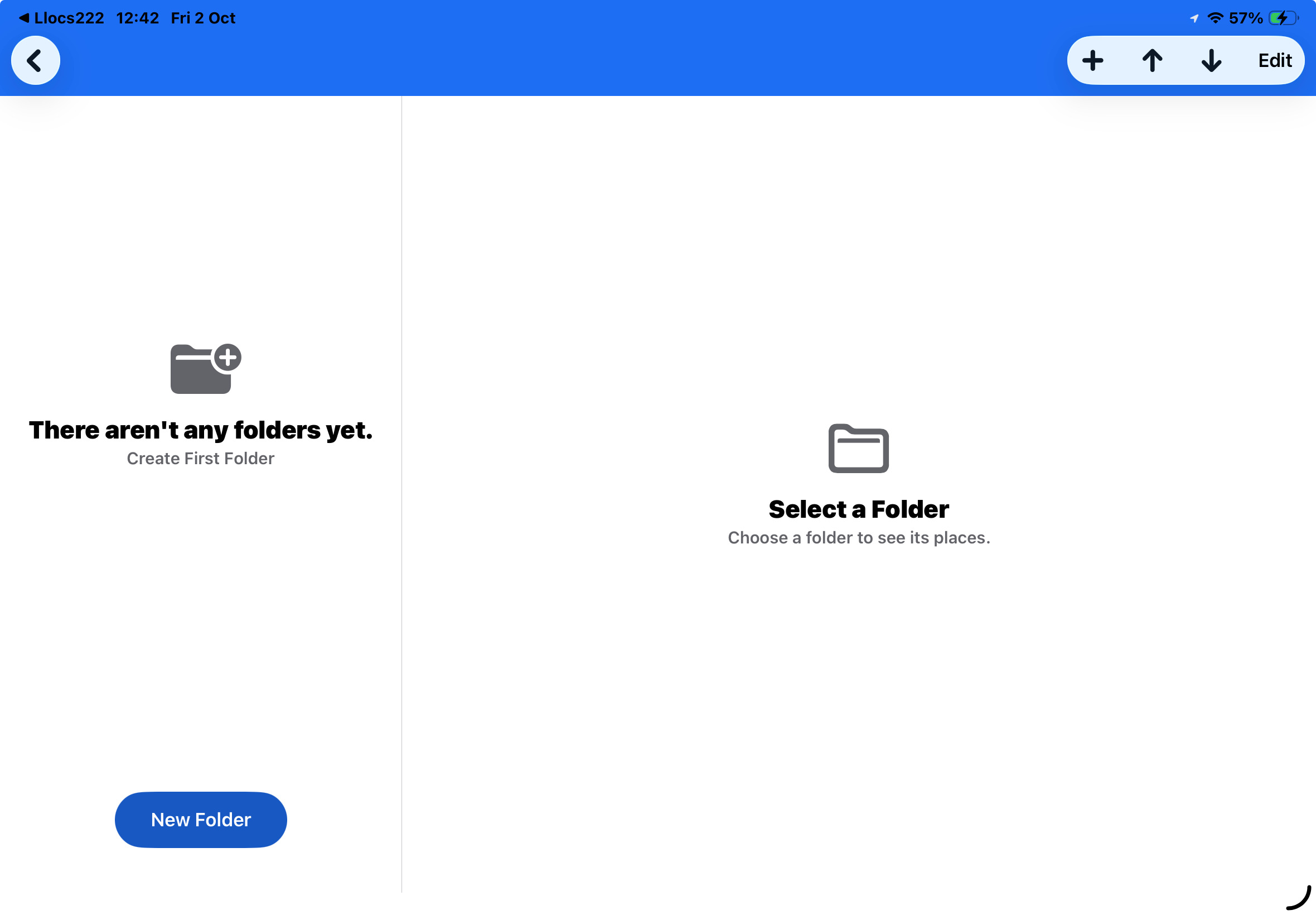
Every new place starts in a folder. Create your first folder before entering your first place.
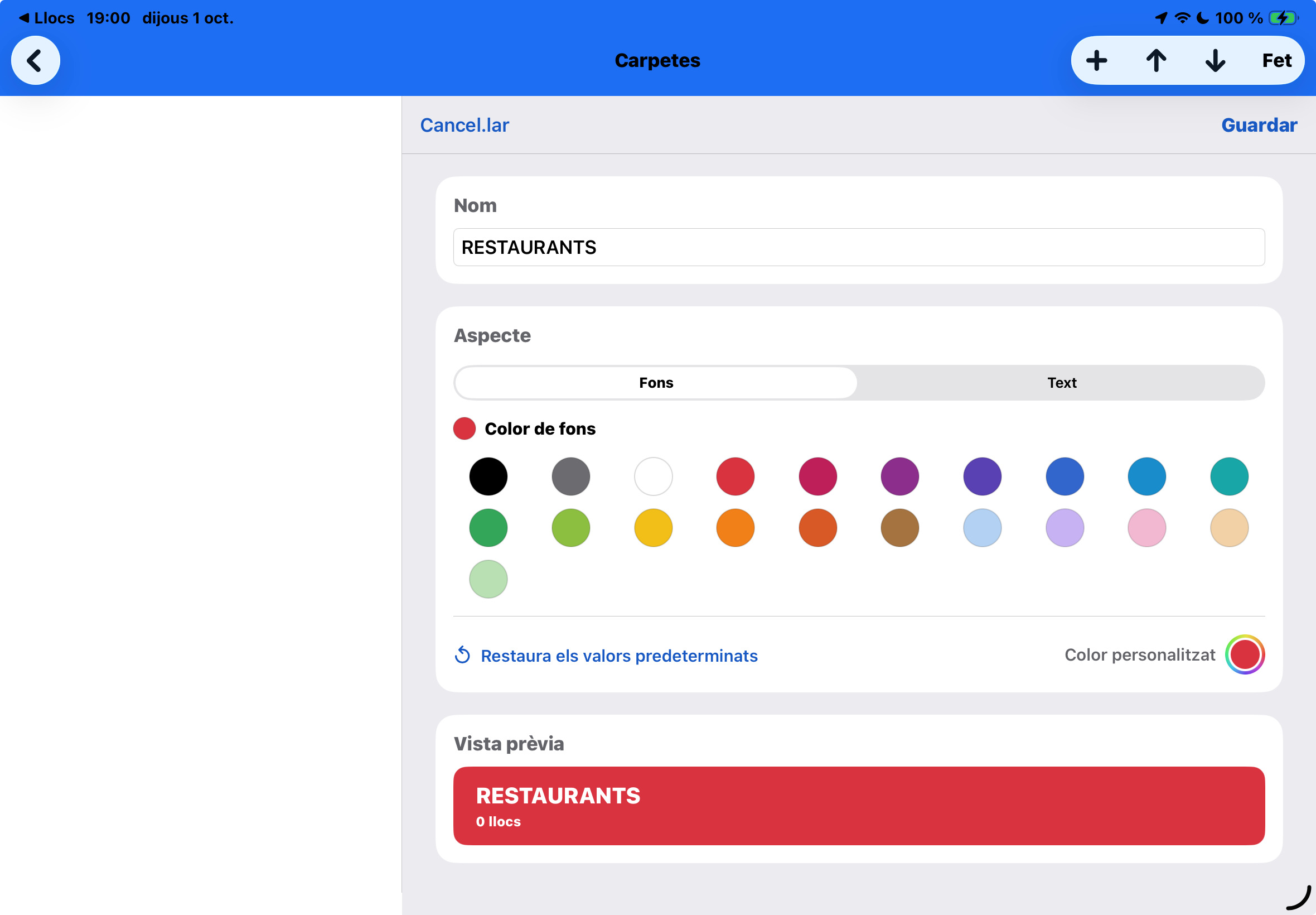
- Open Folders. If there are no folders yet, tap + and create the first one. Give it a useful name and choose its colours.
- Open the folder. New places are entered from inside a folder, so choose where the place should belong before adding it.
- Tap + to add a place. Choose address lookup, coordinates or your current position. Review the result on the map and save.
- Open the saved place. Tap its row to explore the map, complete its information or prepare a route.
 ↑ Back to top
02 / LLOCS
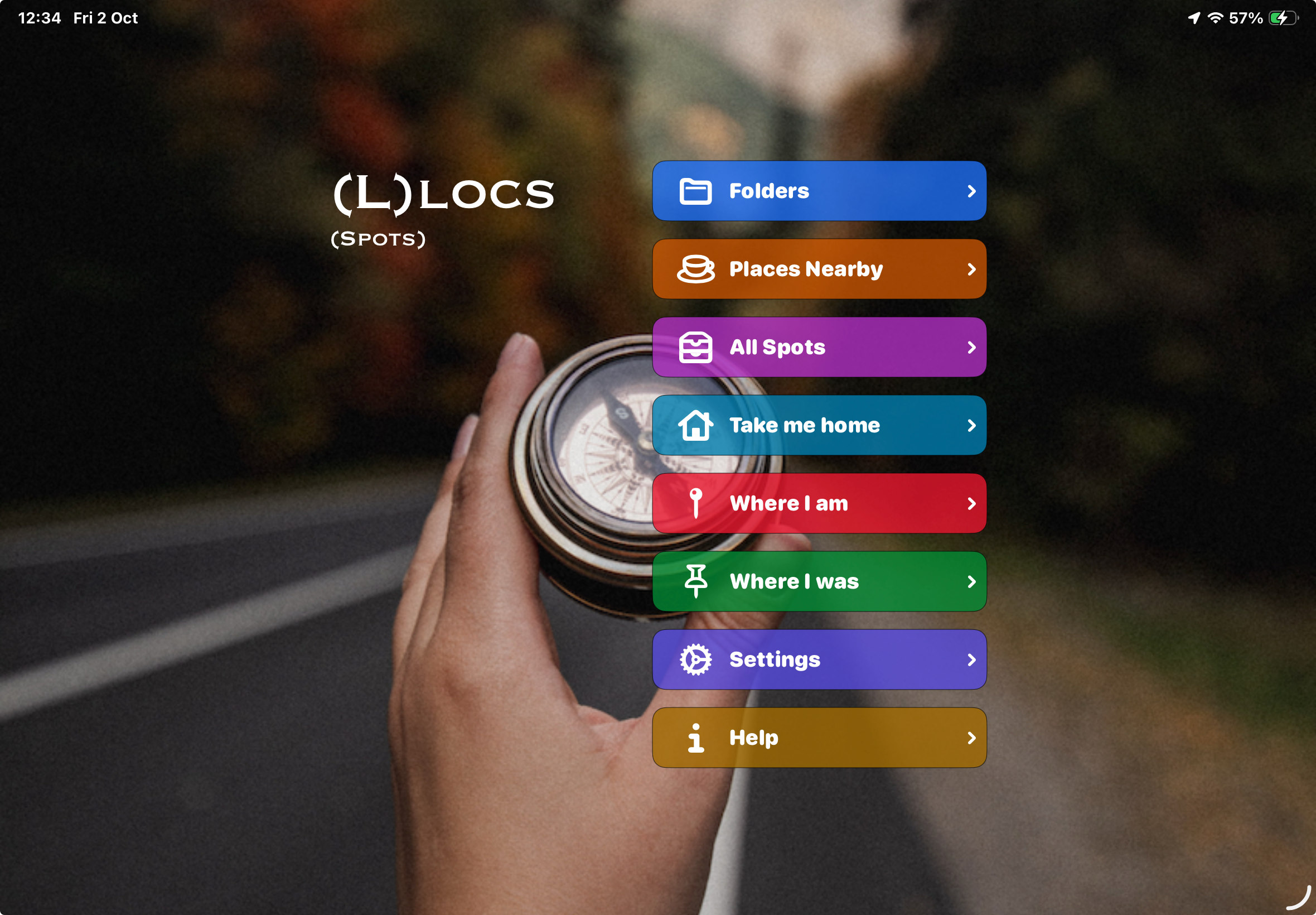
Find your way around the home screen
A starting point for each way of working with your places.
| Option | Purpose |
|---|---|
| Folders | Organise places by trip, area or theme. |
| Places Nearby | Search for points of interest around a location. |
| All Spots | Browse saved places without first choosing a folder. |
| Take me home | Open directions to the place marked as Home. |
| Where I am | See and save your current position. |
| Where I was | Retrieve the last position saved from Where I am. |
| Settings | Adjust preferences and manage backups. |
| Help | Read the introduction and online manual, or watch the demonstration video. |
03 / LLOCS
Organise folders and places
Use colours, your own folder order and the actions on each place to keep frequent destinations within reach.
Two modes for the folder list
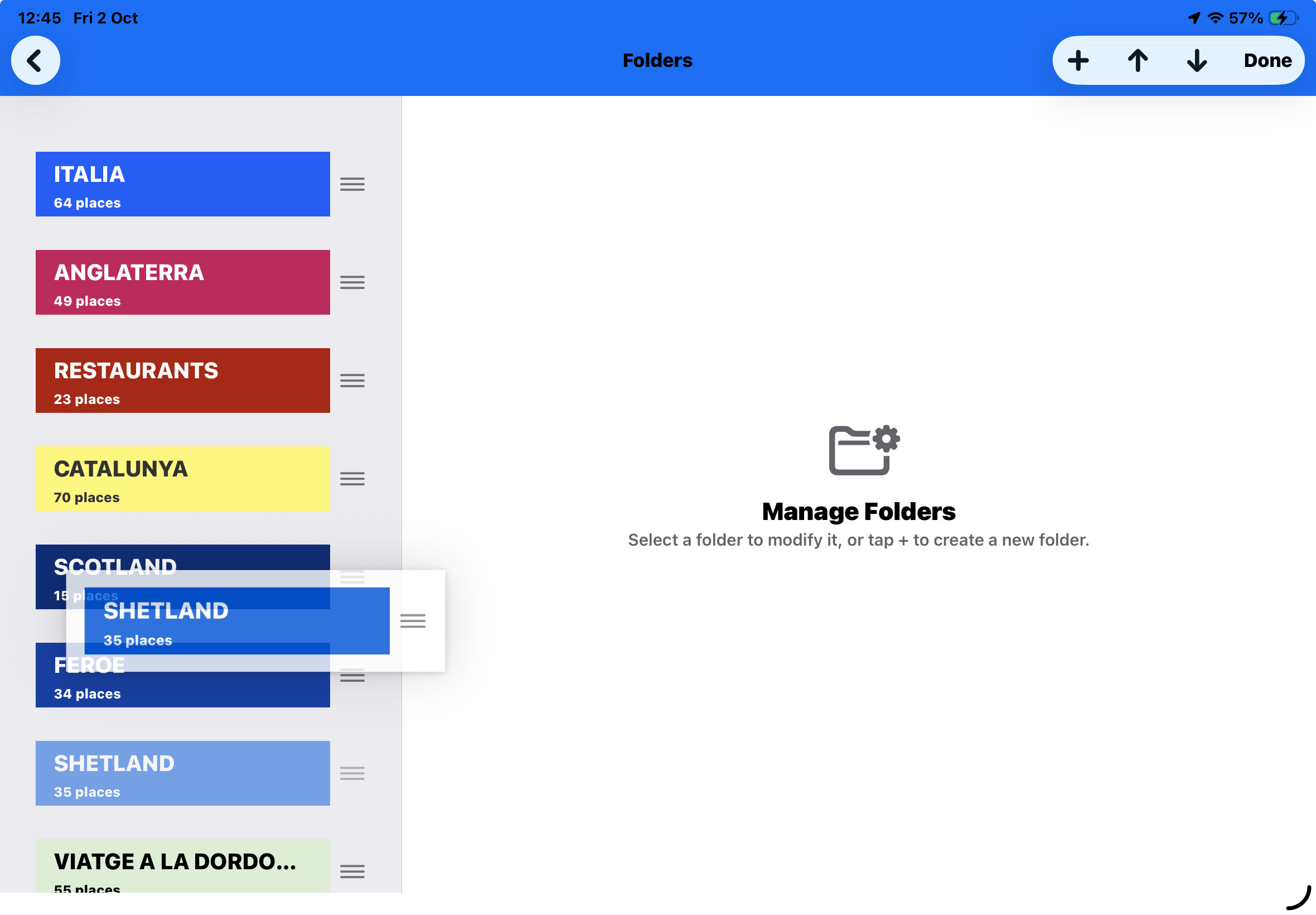
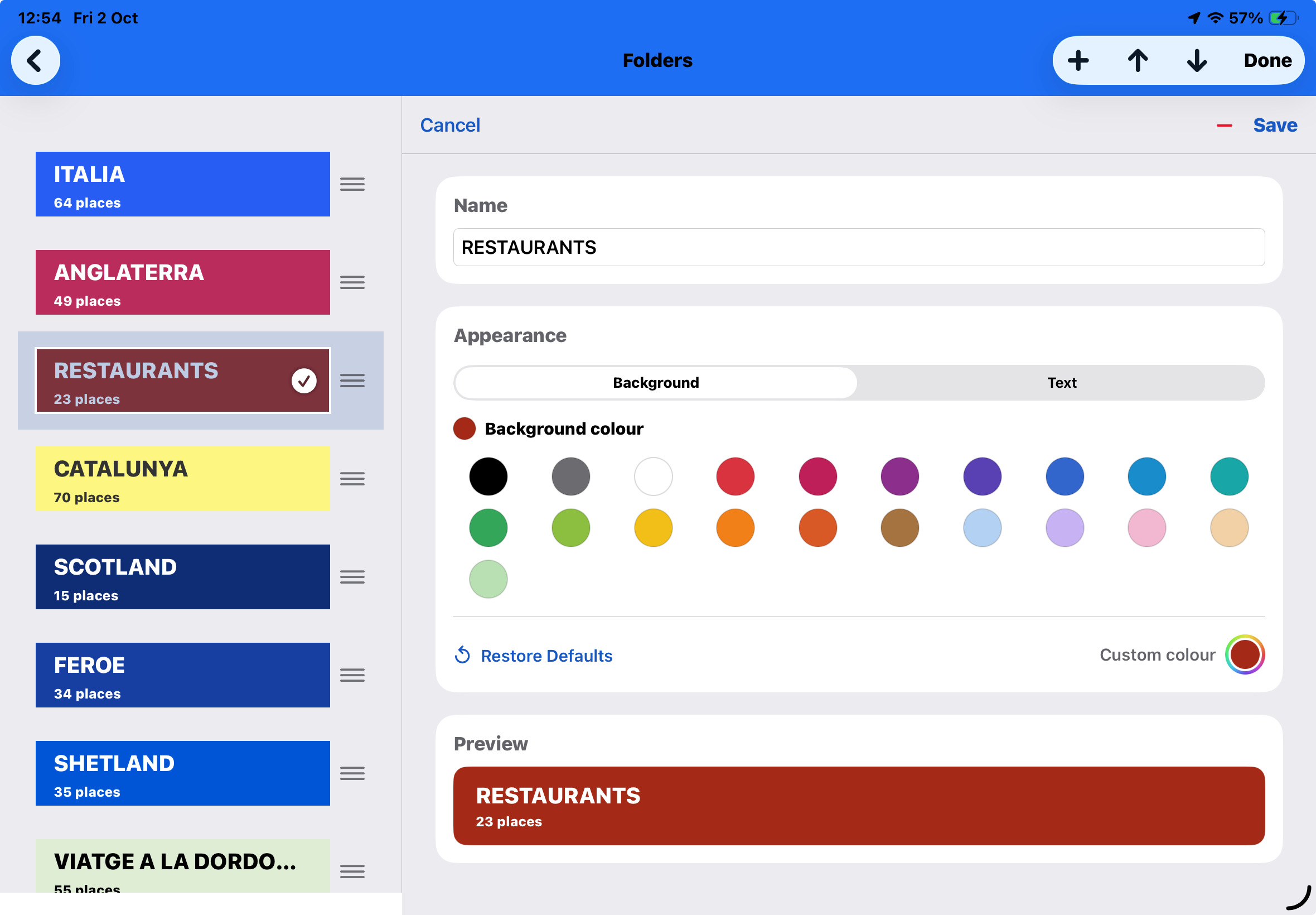
In the normal mode, tapping a folder opens the list of places that belong to it. Tap Edit to manage the folders themselves: tapping a folder now opens its name, background colour and text colour for editing.
While editing, touch and hold a folder row, then drag it to the position you want. Put frequently used folders near the top. Tap Done to leave editing mode; tapping a folder then opens its places again.
A place can belong to several folders
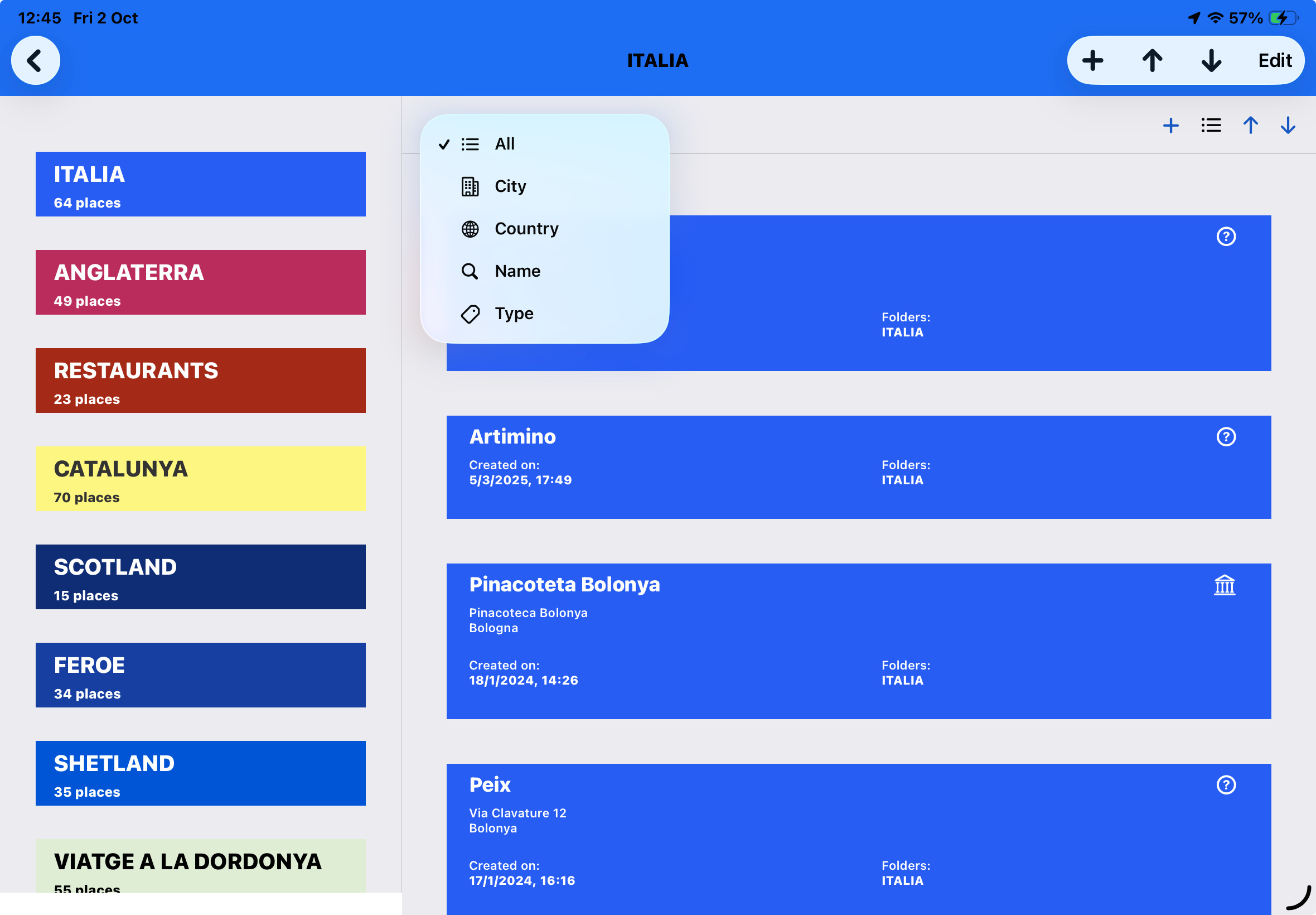
Use folders as overlapping groups rather than exclusive categories. For example, the same place can belong to FRANCE and RESTAURANTS. Copying it to another folder adds that membership; moving it changes the folder it belongs to.
Swipe actions on a place
In the places list, leave selection mode before using these gestures:
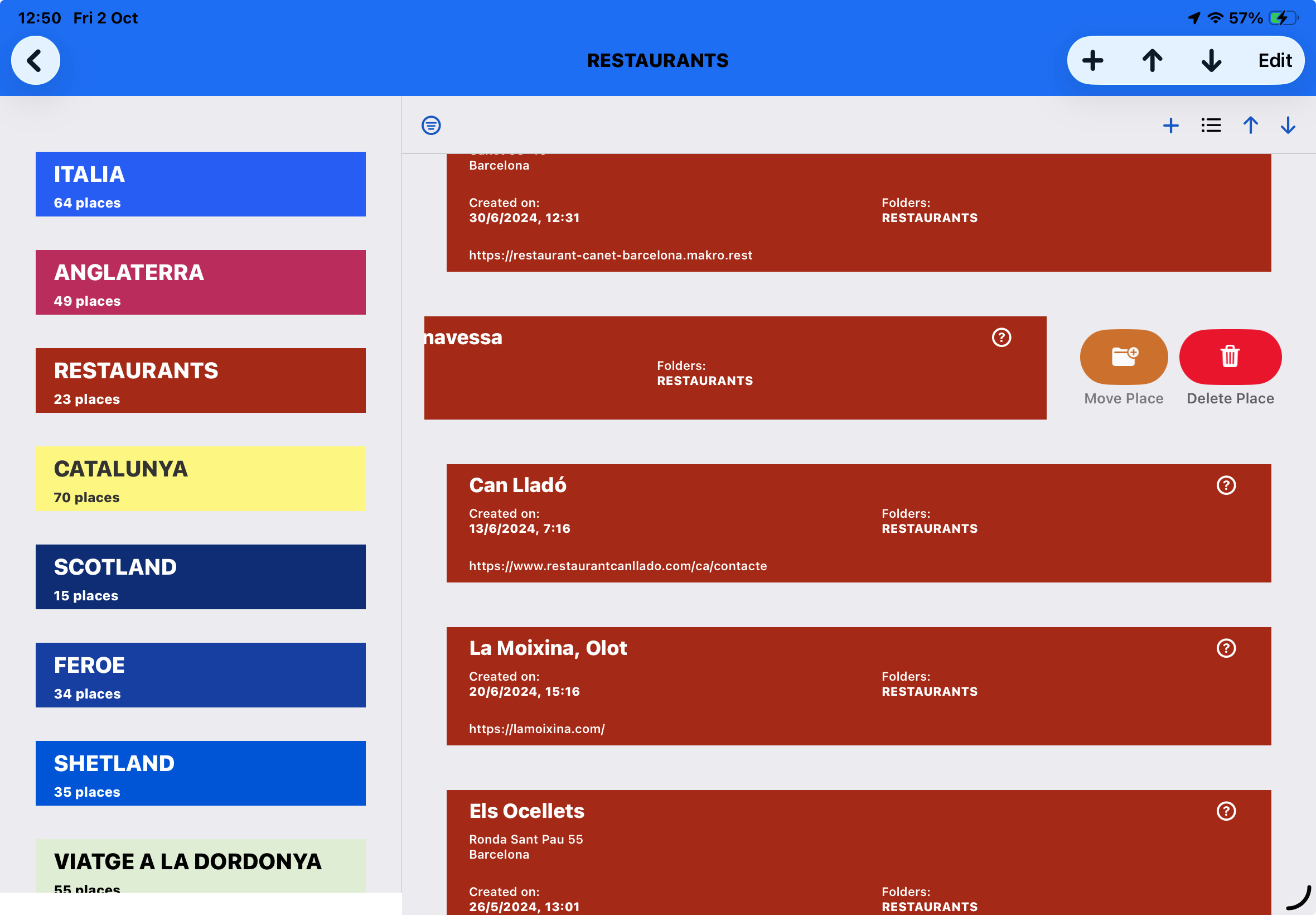
- Swipe the row to the left: reveal Delete and Move/Copy. Choose a destination folder when moving or copying.
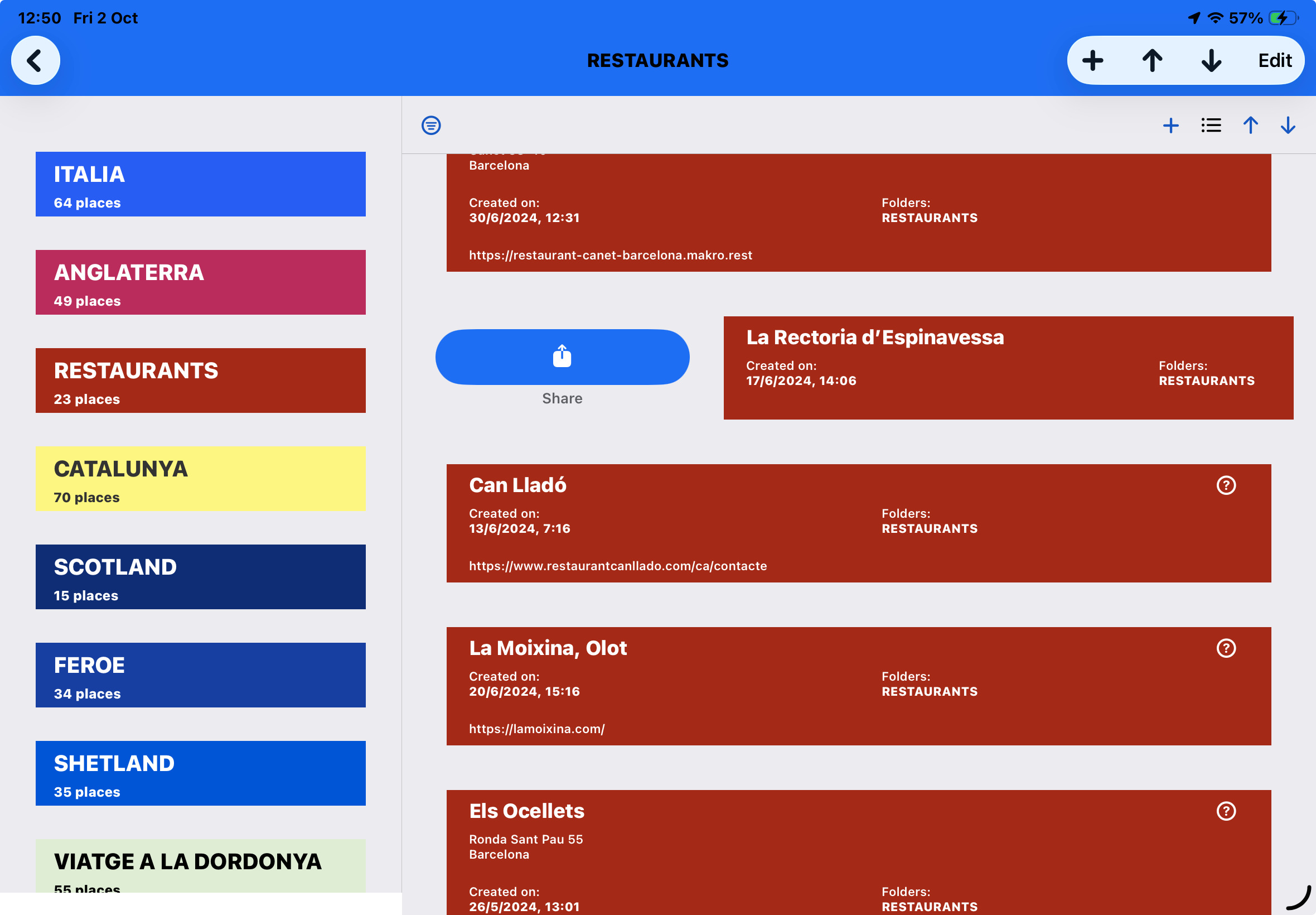
- Swipe the row to the right: reveal Share. Its options include exporting that place in LLOCS’s own format, so someone can import it into another copy of LLOCS.
Selected places: a map and a proximity menu
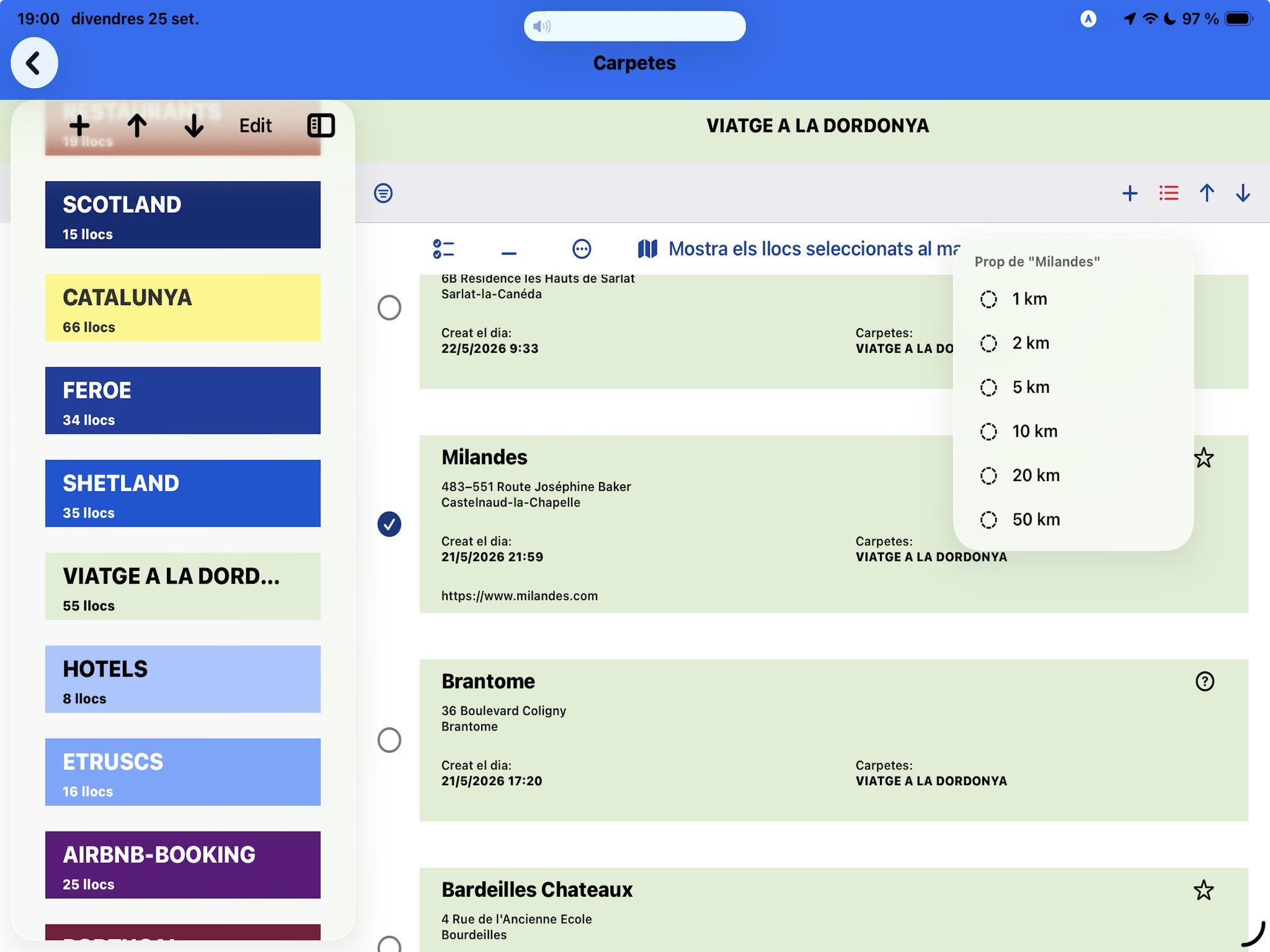
Enable selection and choose the places you want to work with. The map button opens a map of those saved LLOCS places, where you can build a route interactively by tapping them in sequence.
When exactly one place is selected, a separate proximity button appears. Choose a distance from its pop-up menu to show saved LLOCS records within that threshold of the selected place. This works with your records; it is different from searching for new businesses or attractions with Places Nearby.
The list’s filters and sorting controls help you choose the records to include.
04 / LLOCS
Add a place accurately
Look up an address, paste a location or use where you are now, then check the position before saving.
Start by opening the folder that should contain the place, then tap +. If you have not created any folders yet, create one first.
Look up an address
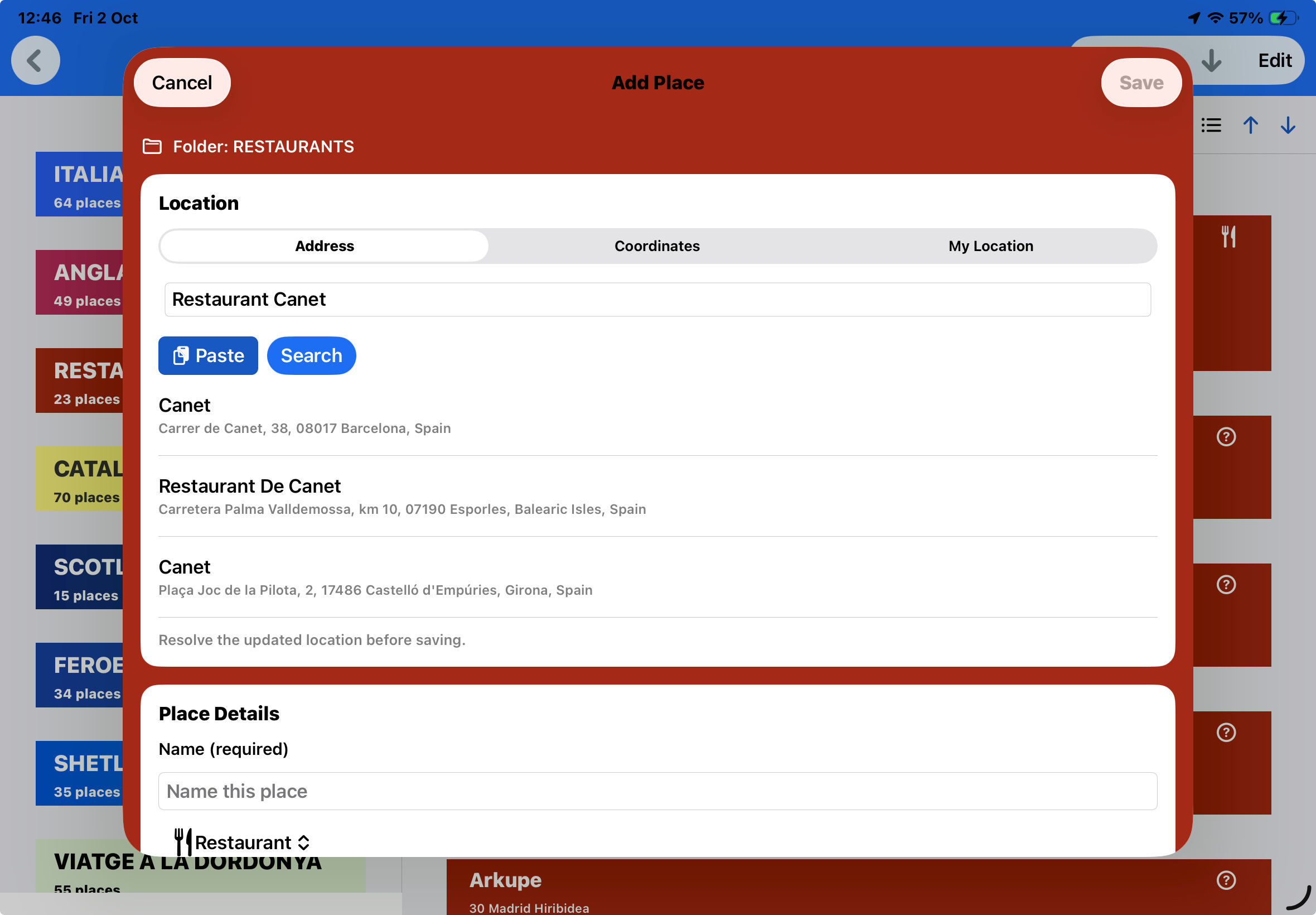
- Choose the option to add by address. Enter the address or place you want to locate and use the lookup results to select the appropriate match.
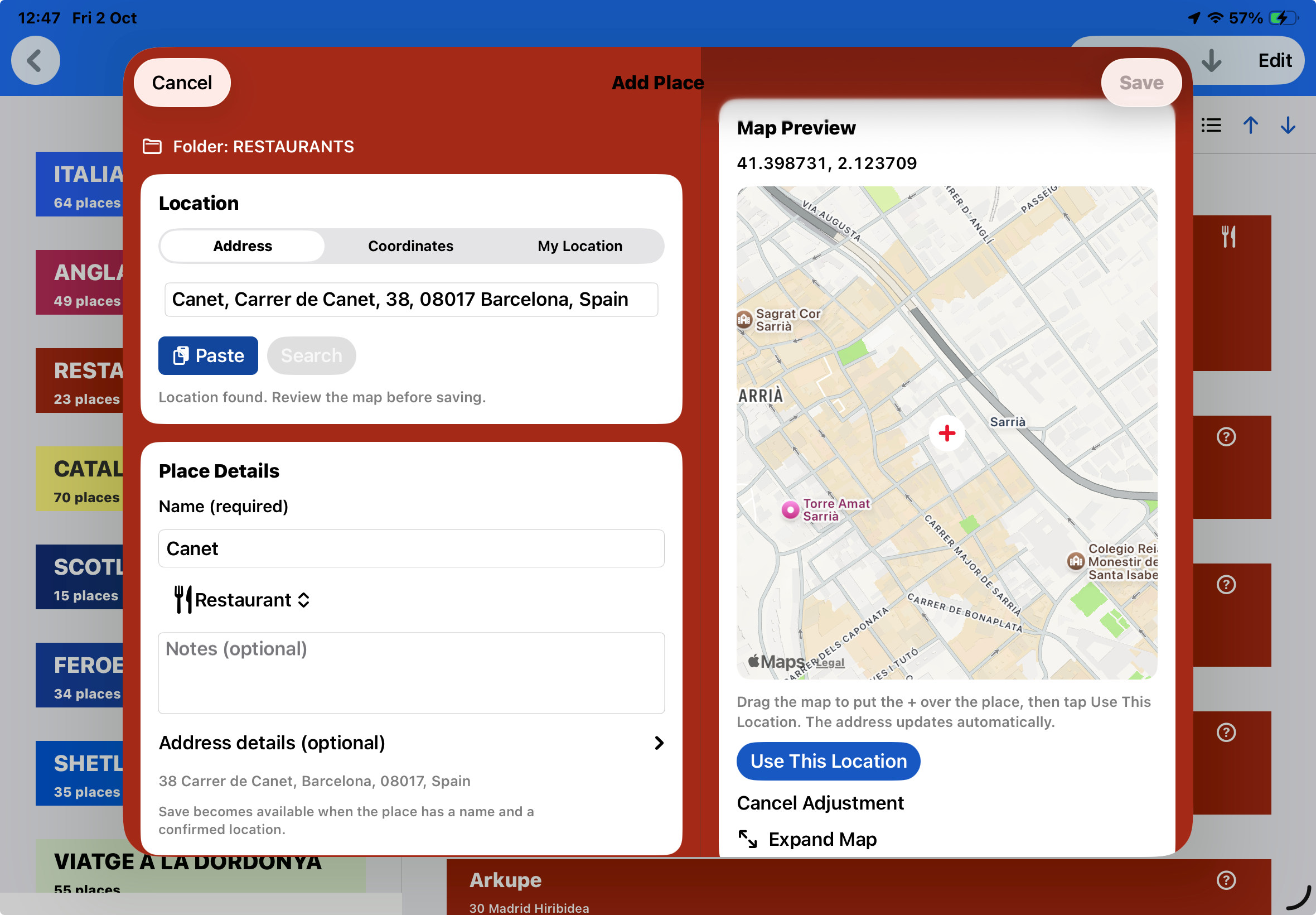
- Check the resolved position on the map. A search result is a starting point: it may identify the building or street rather than the entrance or meeting point you need.
- Tap Adjust Location , then drag the map until the + is over the exact spot. Confirm with Use This Location. The address updates to match the adjusted position.
- Review the name and other information, and save the place in the folder you opened.
Paste coordinates, a Plus Code or a map link
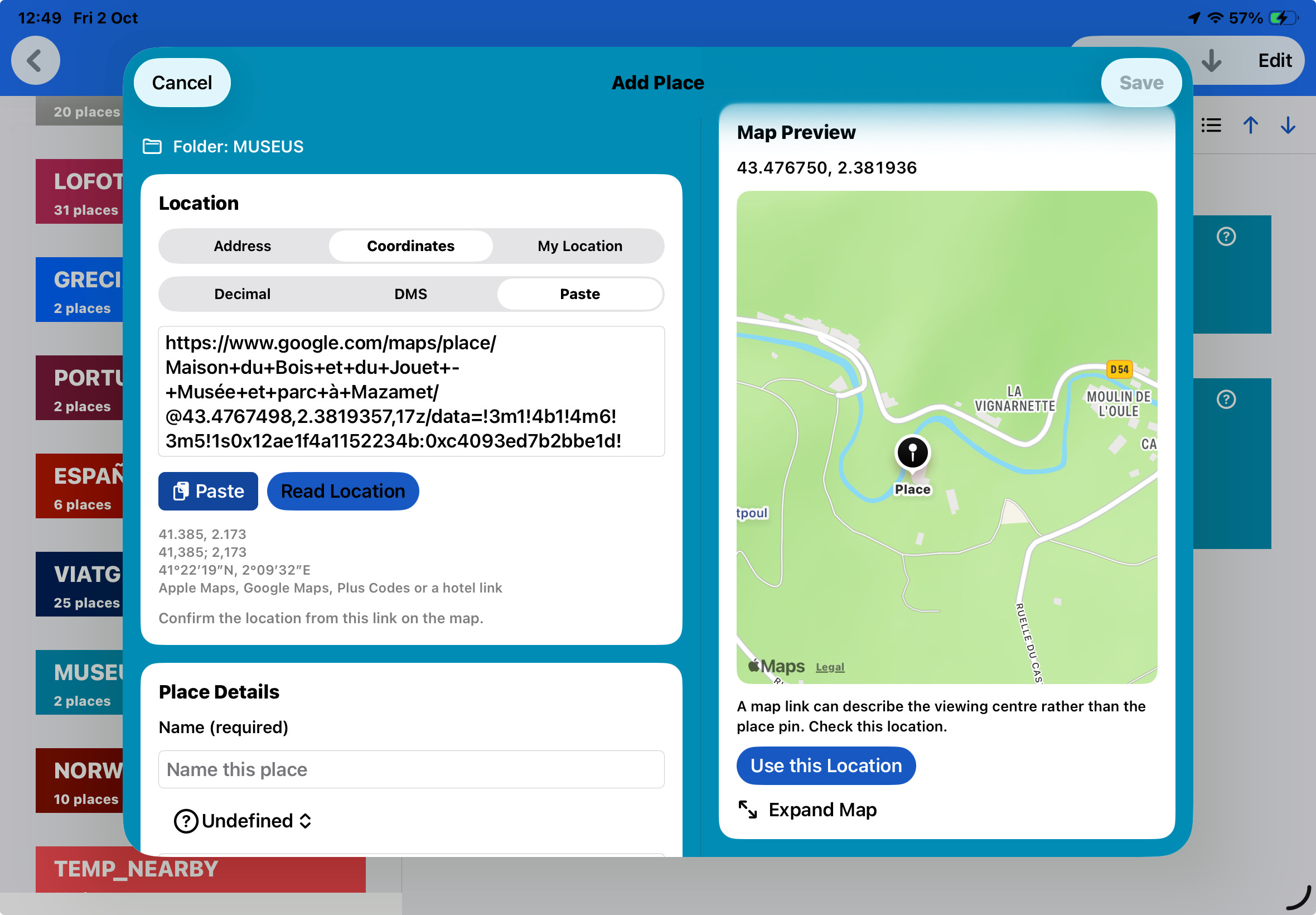
The paste option accepts more than one kind of location. You can paste a latitude/longitude pair in formats such as decimal degrees or degrees/minutes/seconds (DMS), a Google Plus Code , or a Google Maps place URL that contains location information. You do not need to extract the coordinates manually. If you use decimal commas, separate latitude and longitude with a semicolon. A short Plus Code must include the city or locality. For example: F9GJ+MQ Mazamet, France.
For example, a Google Maps link for Maison du Bois et du Jouet in Mazamet includes the coordinates 43.4767498, 2.3819357. Paste the full copied link, let LLOCS resolve it and check the resulting point.
Example of a Google Maps link to paste
https://www.google.com/maps/place/Maison+du+Bois+et+du+Jouet+-+Musée+et+parc+à+Mazamet/@43.4767498,2.3819357,17z/data=!3m1!4b1!4m6!3m5!1s0x12ae1f4a1152234b:0xc4093ed7b2bbe1d!8m2!3d43.4767498!4d2.3819357!16s%2Fg%2F1tgz7jdk?entry=ttu&g_ep=EgoyMDI2MDkyOC4wIKXMDSoASAFQAw%3D%3D
Use your current position
Choose the current-position option when you are at the place. Allow location access when requested, wait for a reliable position and check the map before saving.
↑ Back to top05 / LLOCS
Complete a place’s information
Use the map for its location and the information screen for your own details.
- Open a place and tap the information button.
- Review the name, address and coordinates. Add a comment that will help when you return.
- In the websites or links section, tap Add link. Enter the URL or paste it when the clipboard option is offered.
- Confirm the link and save the changes. Open the information screen again to check them.
06 / LLOCS
Explore the map
Use the map’s shortcuts to inspect a place, find a direction, prepare a route or share a useful view.
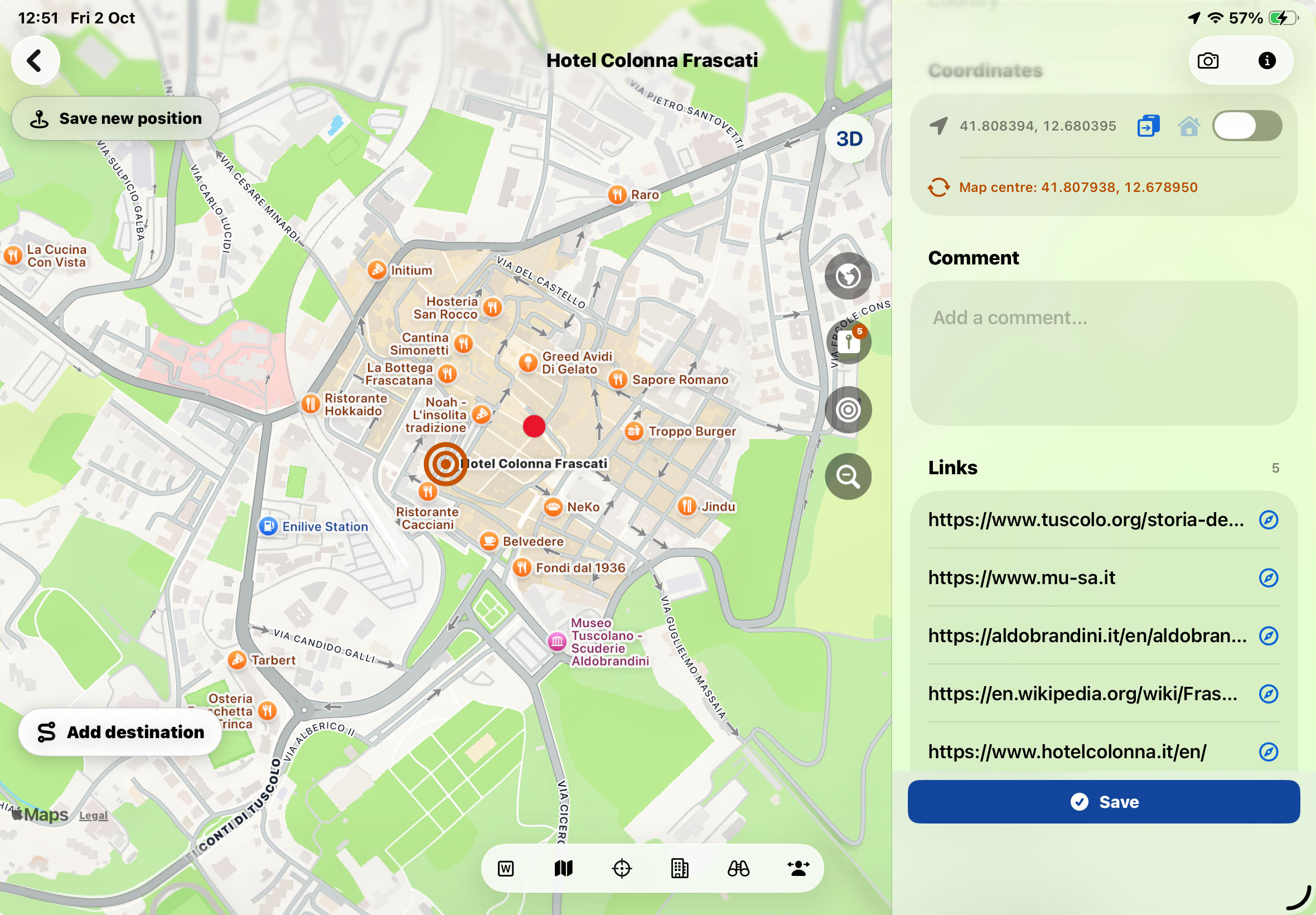
Open a saved place by tapping its row. Move and zoom the map to inspect the area. The controls described below refer to the illustrated layout; their position may change on a smaller screen.
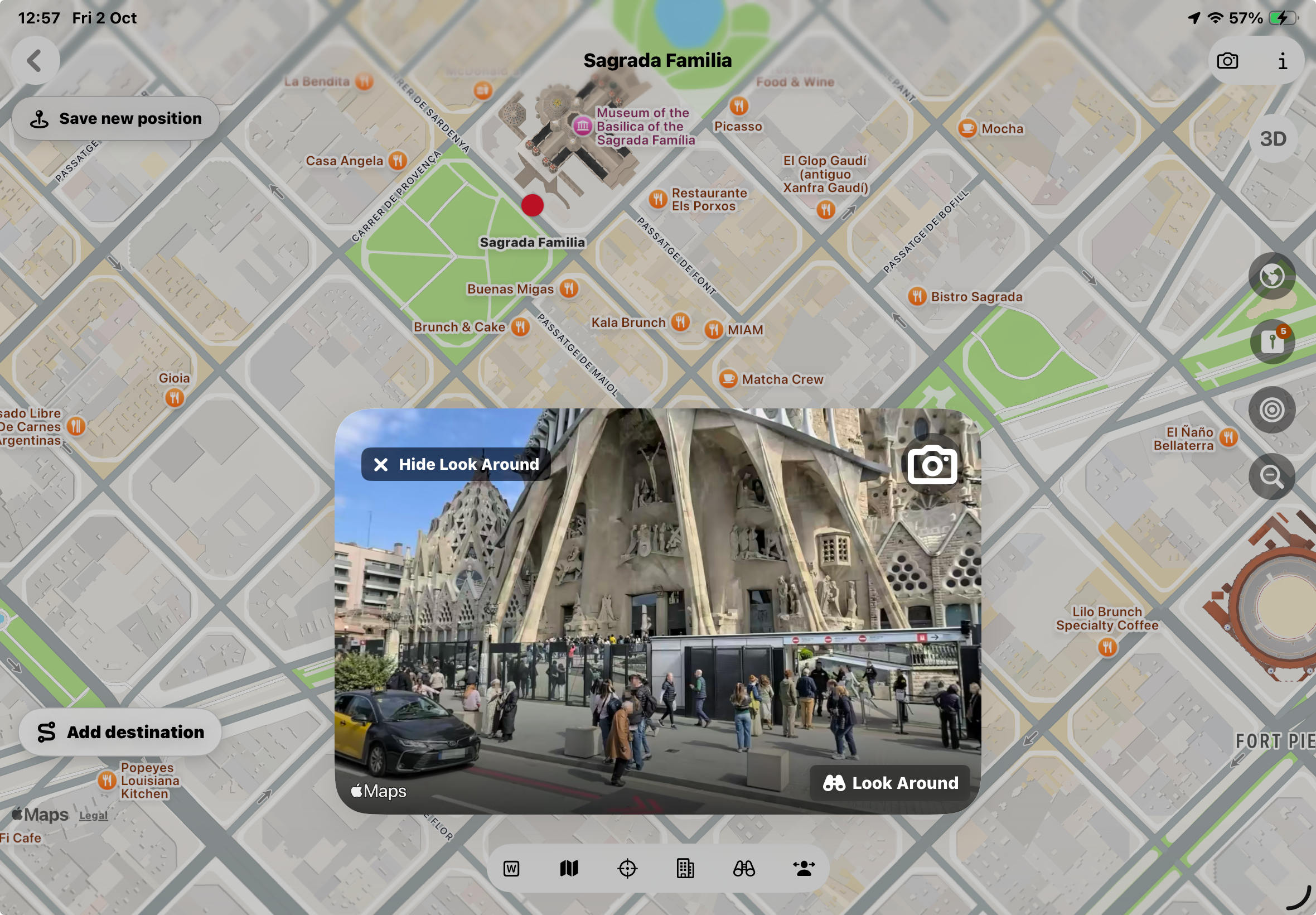
Look Around and Google Street View
Look Around shows Apple’s street-level imagery where coverage is available. It is not a live camera, not every location has imagery, and a scene may be older than the current surroundings.
The “Panoramic view” button opens full-screen navigation in Look Around. You can then move through the imagery to the position you want. This is useful when preparing a trip—for example, when an Airbnb is hard to find from the directions provided—or visiting somewhere unfamiliar with an unclear address. Seeing the entrance, street number or other details of the area or building can provide valuable information.
With the Google Maps app installed, a separate button opens Google Street View for the location. The two services complement one another: coverage and capture dates differ, and either may show outdated scenes. Compare them when an entrance, building or street no longer matches what you expect.
The camera button inside Look Around captures that scene. You can later include the snapshot alongside the map in a shared PDF.
W: start navigation with Waze
If Waze is installed, tap W to open navigation instructions to this place in Waze. It is a useful shortcut when you get into the car: with the iPhone connected to a compatible CarPlay system, you can continue the route on the car’s screen. The W button is available in the single-place map; remove an added second point if it is disabled.
Map cards and nearby hotels
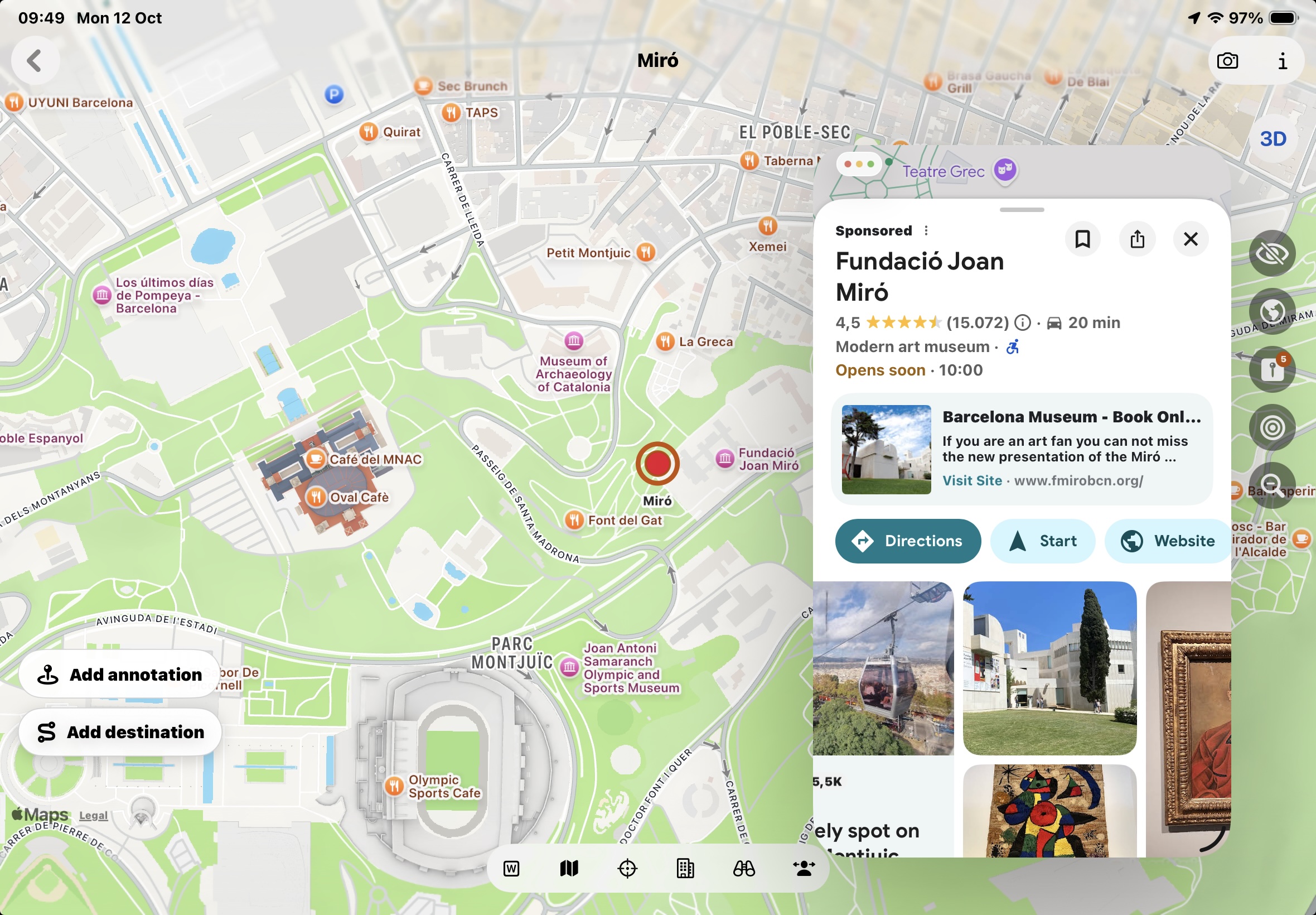
The map button, second from the left in the bottom toolbar, opens a menu with three choices:
- The place or attraction’s Apple Maps card .
- The place or attraction’s Google Maps card (requires the Google Maps app).
- Booking.com hotels near this location.
The aim icon: a digital compass through the camera
Tap the aim/target icon for the augmented-reality direction view. It combines the camera and direction guidance to help you understand which way the saved destination lies and which way to start moving.
Treat it as an orientation aid. Check its location and compass accuracy messages: an unreliable heading can put the target in the wrong direction. Use the map and the actual surroundings to choose a suitable path.
AR compass demonstration
Choose the iPhone or iPad demonstration. An internet connection is required to watch the video.
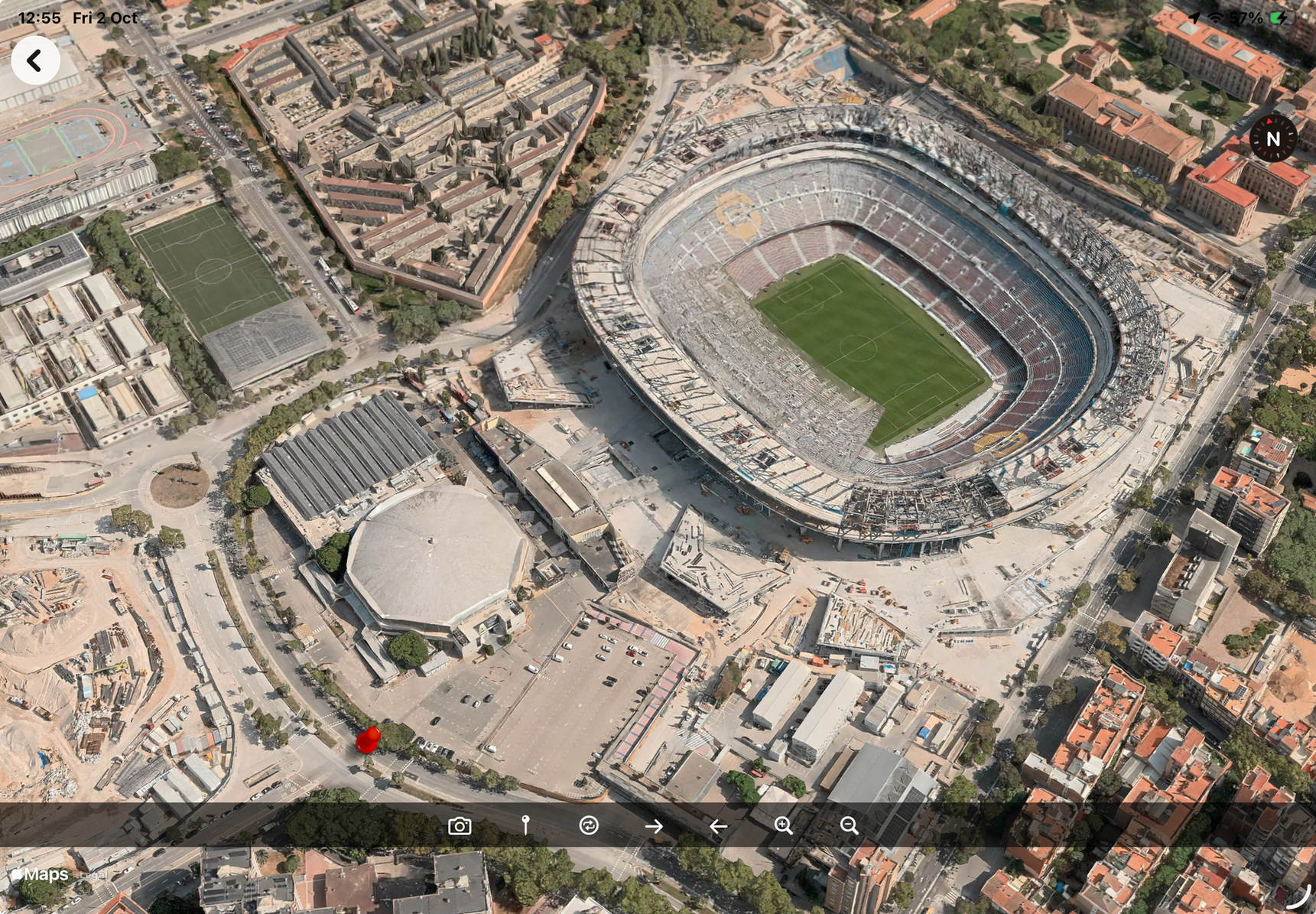
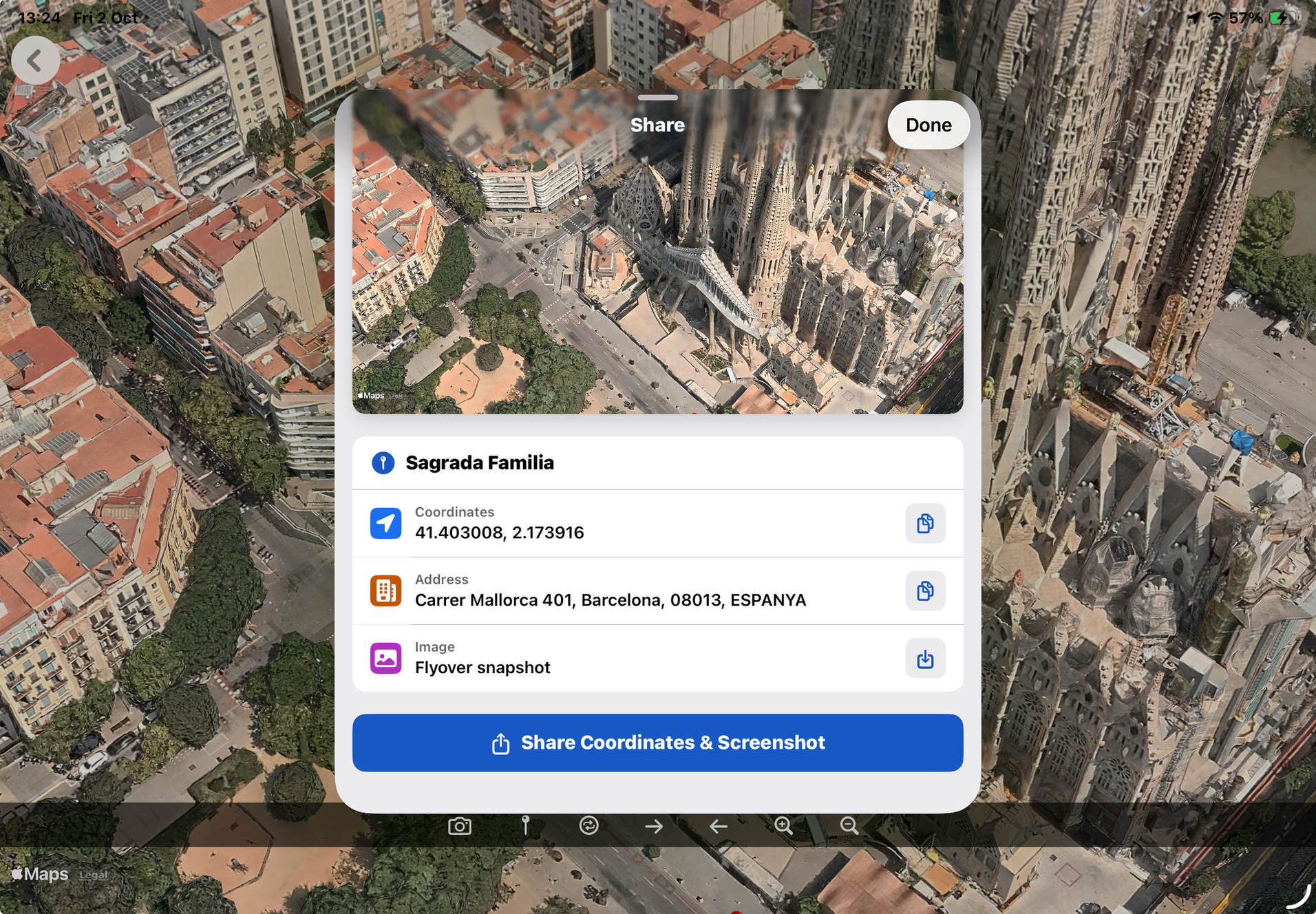
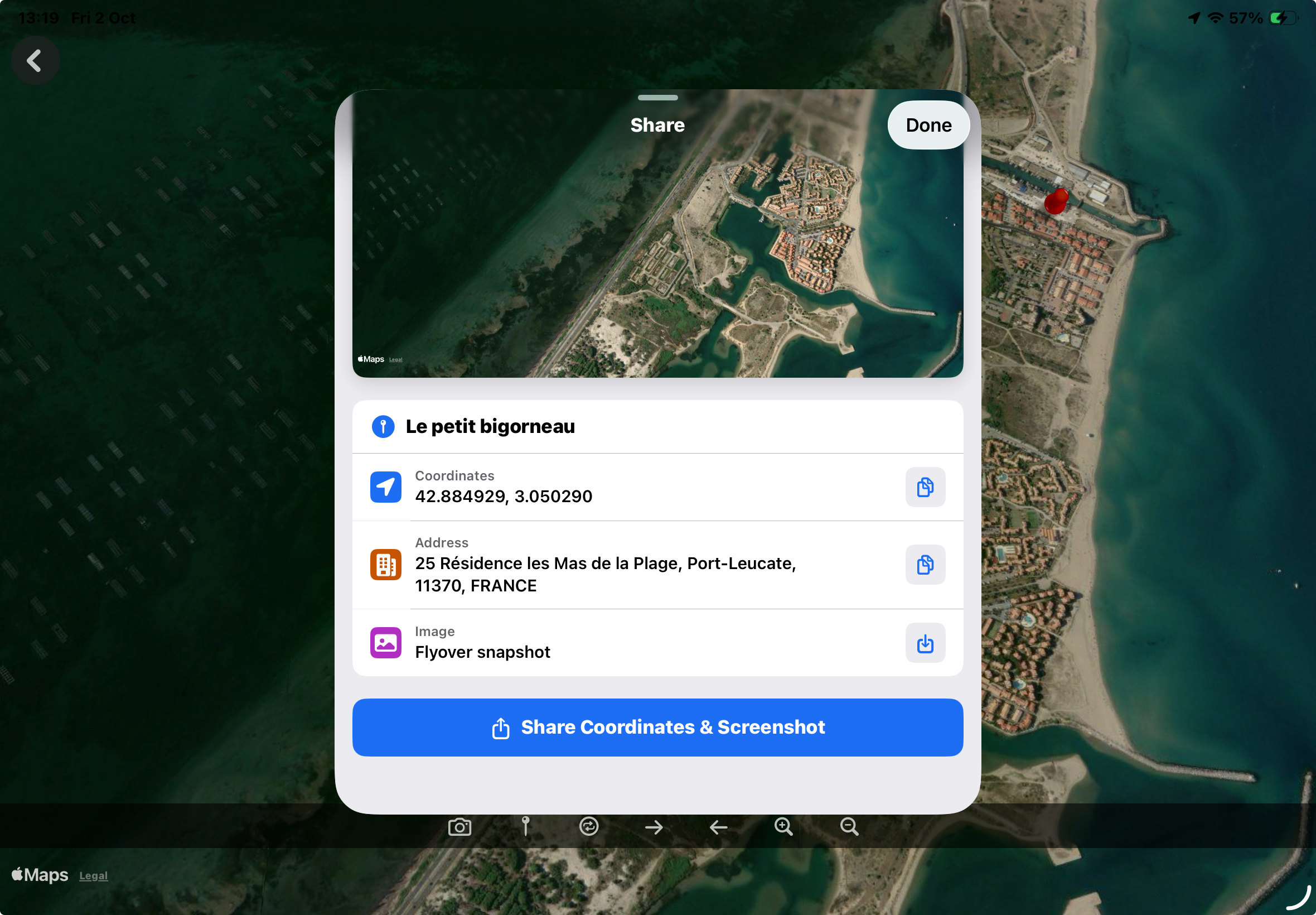
Flyover: share the meeting point in context
Open Flyover to see an aerial map scene where the necessary map detail is available. Use its toolbar to view the place from different camera positions. The share button lets you share a screenshot of the scene with a red pin marking the place.
This is especially useful when arranging to meet at an event: the aerial view and pin can show the intended meeting point more clearly than an address alone.
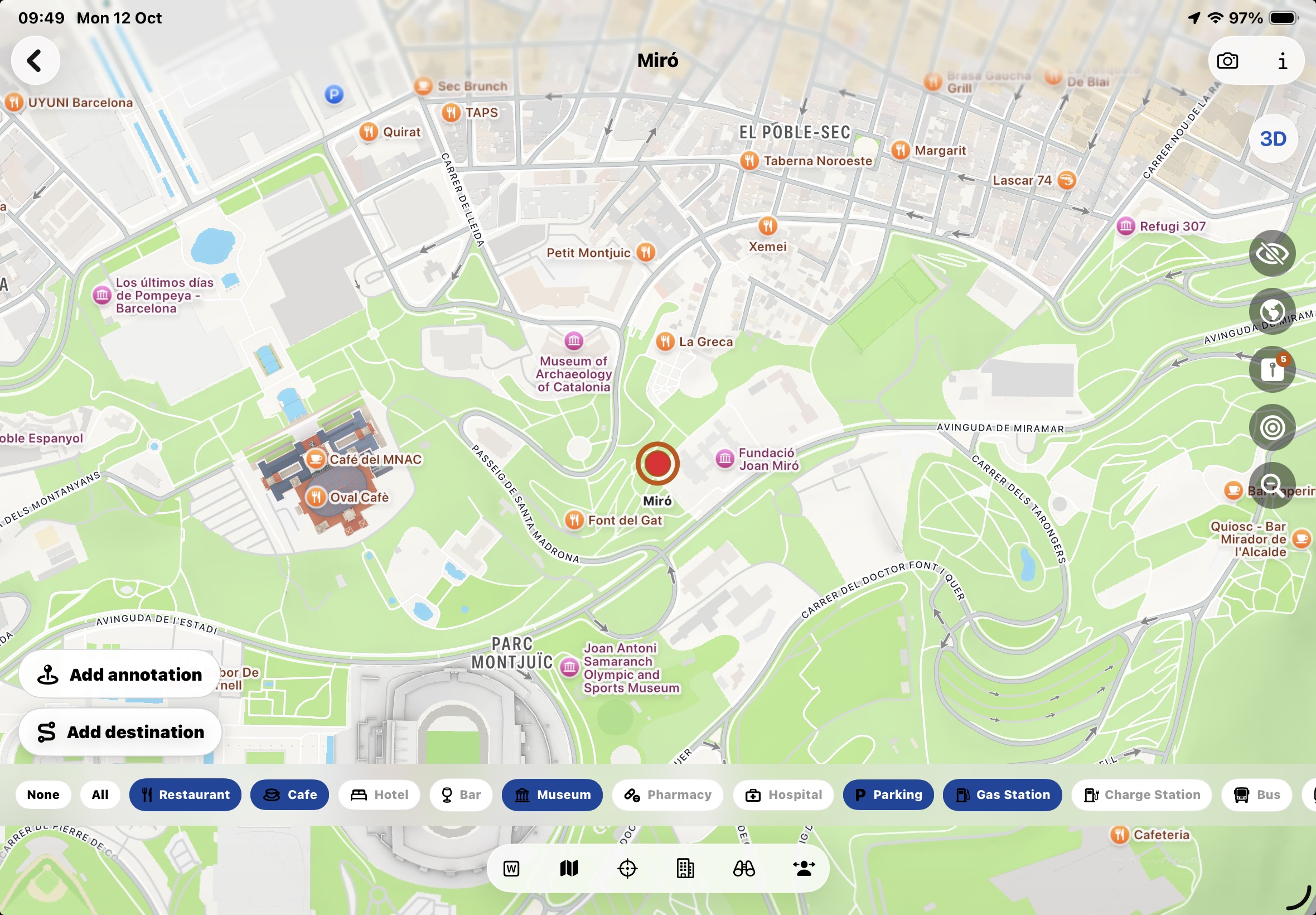
Reduce clutter with the points-of-interest filter
The third button from the bottom in the side toolbar opens a list of categories such as hotels, restaurants and parking. Choose which categories to show on the map, and turn off those you do not need to keep the view easier to read.
Top camera button: Map / Drawing
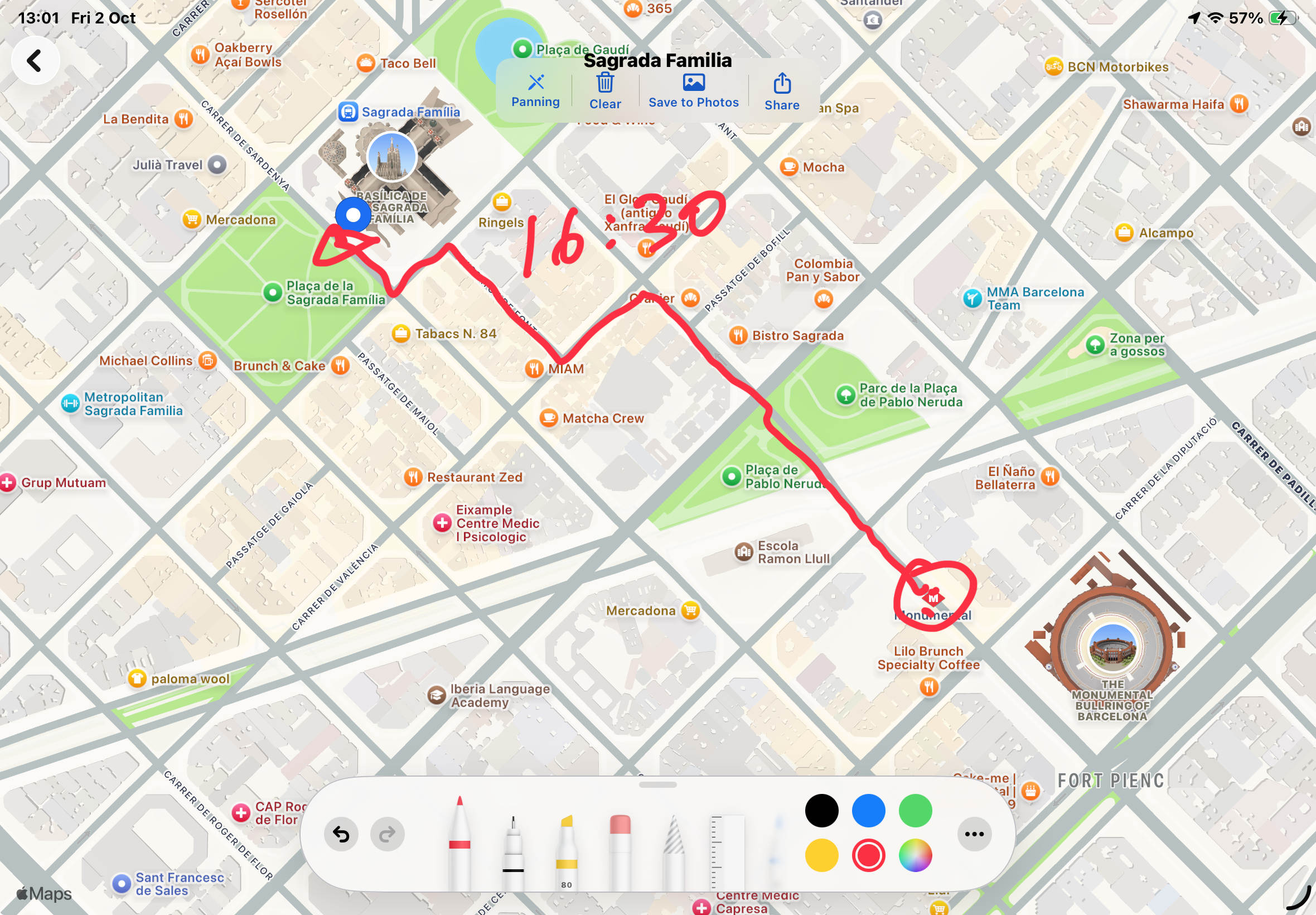
The camera button in the top toolbar opens the view with the Map / Drawingswitch. Switch to Drawing to paint over the map and share the resulting sketch. See Draw on and share the map for the workflow.
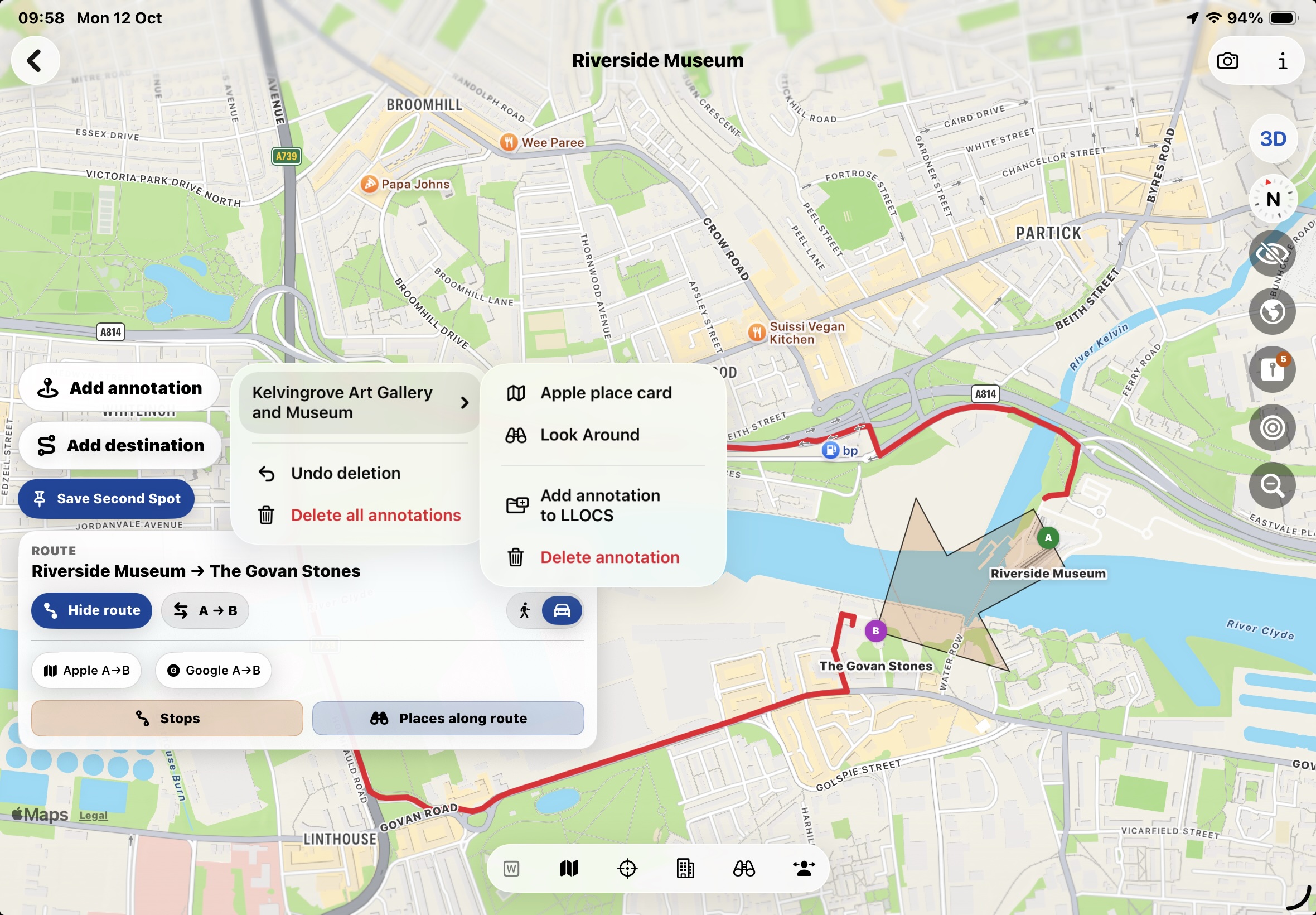
Add annotation
To add an annotation to the map open Add annotation. Typically, you will want to activate one of the static annotations displayed on the Apple map to react to taps. A custom LLOCS annotation will appear, aligning the position of your finger tap with the exact coordinates of the point of interest you selected. Tapping the annotation will then bring up the Apple's' place card. Long-pressing the annotation displays a menu with the following options: view the Look Around scene for the location (if available), create a new LLOCS record using the captured information for the point of interest, or delete it.
 ↑ Torna a l’inici
Add a second point
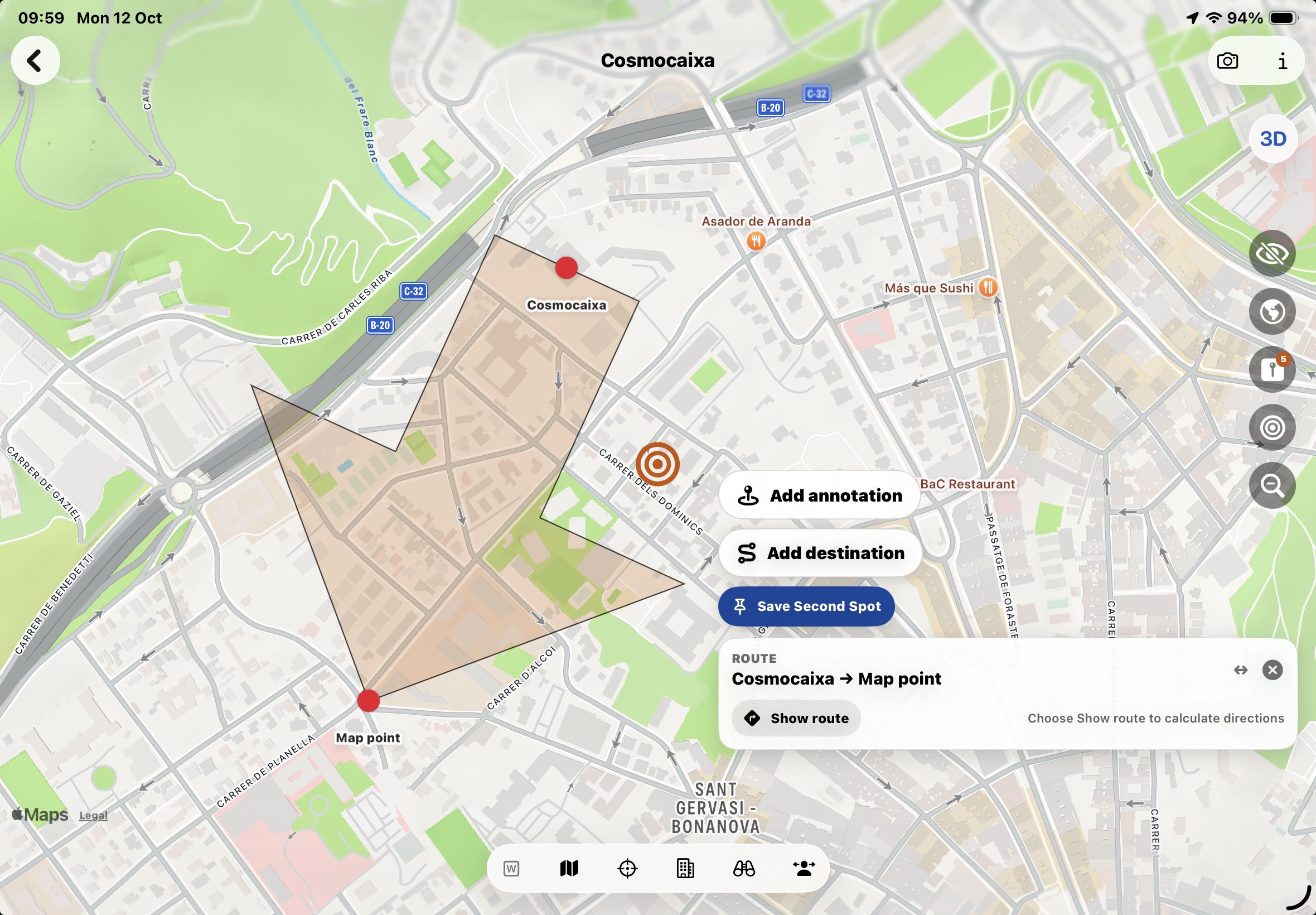
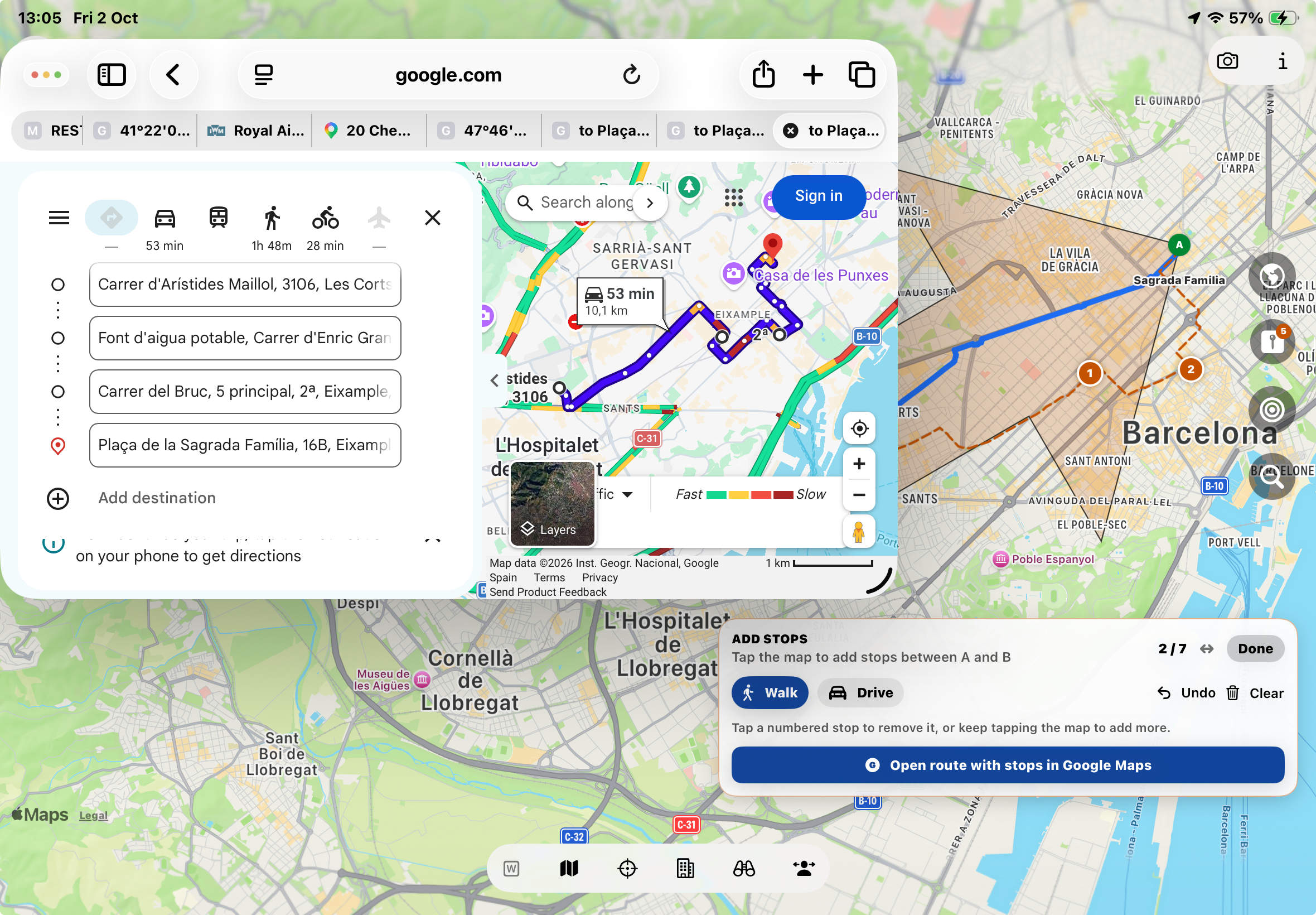
To show a route between the current place and another point, open Add destinationYou can tap a point on the map, choose a location saved in LLOCS, use your current location, or tap one of the annotations you added using 'Add annotation'.
↑ Back to top07 / LLOCS
Connect two places with a route
Add a second point, then check the direction and travel mode before opening navigation.
Three ways to add the second point
From a place’s map, open Add destination and choose:
- Tap on map. Activate this option, then tap the location you want to use as the second point.
- Choose saved place. Select another record already stored in LLOCS.
- Use my location. Use the device’s current position as the other endpoint of the route. Location services access is required.
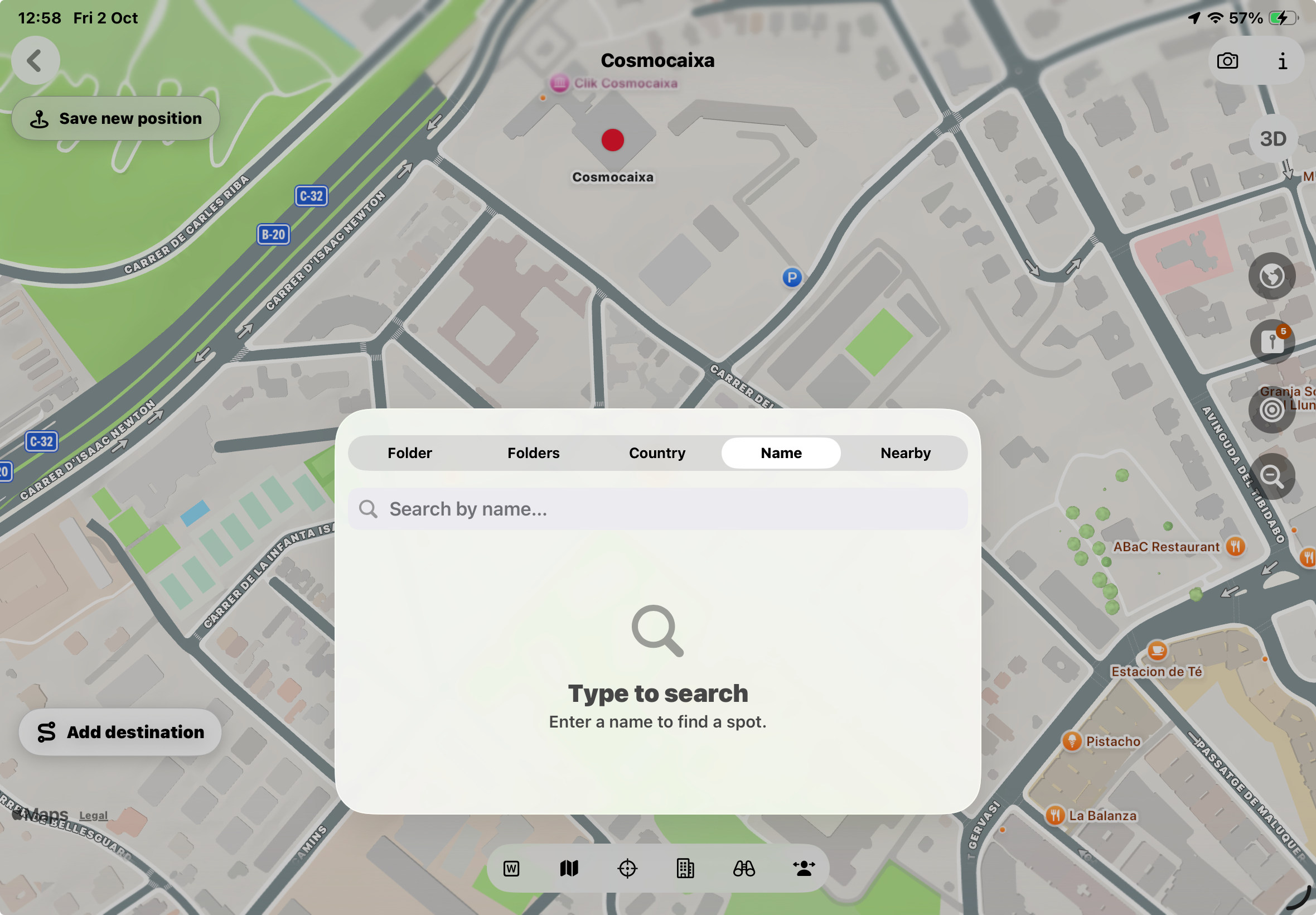
Keep the point you added by tapping
If you choose Tap on map, a button appears at the top left of the map: Save Second Spot lets you save those coordinates as a new record in the LLOCS database. After you give it a name, the new record is saved in the same folder as the original place.
Review and open the route
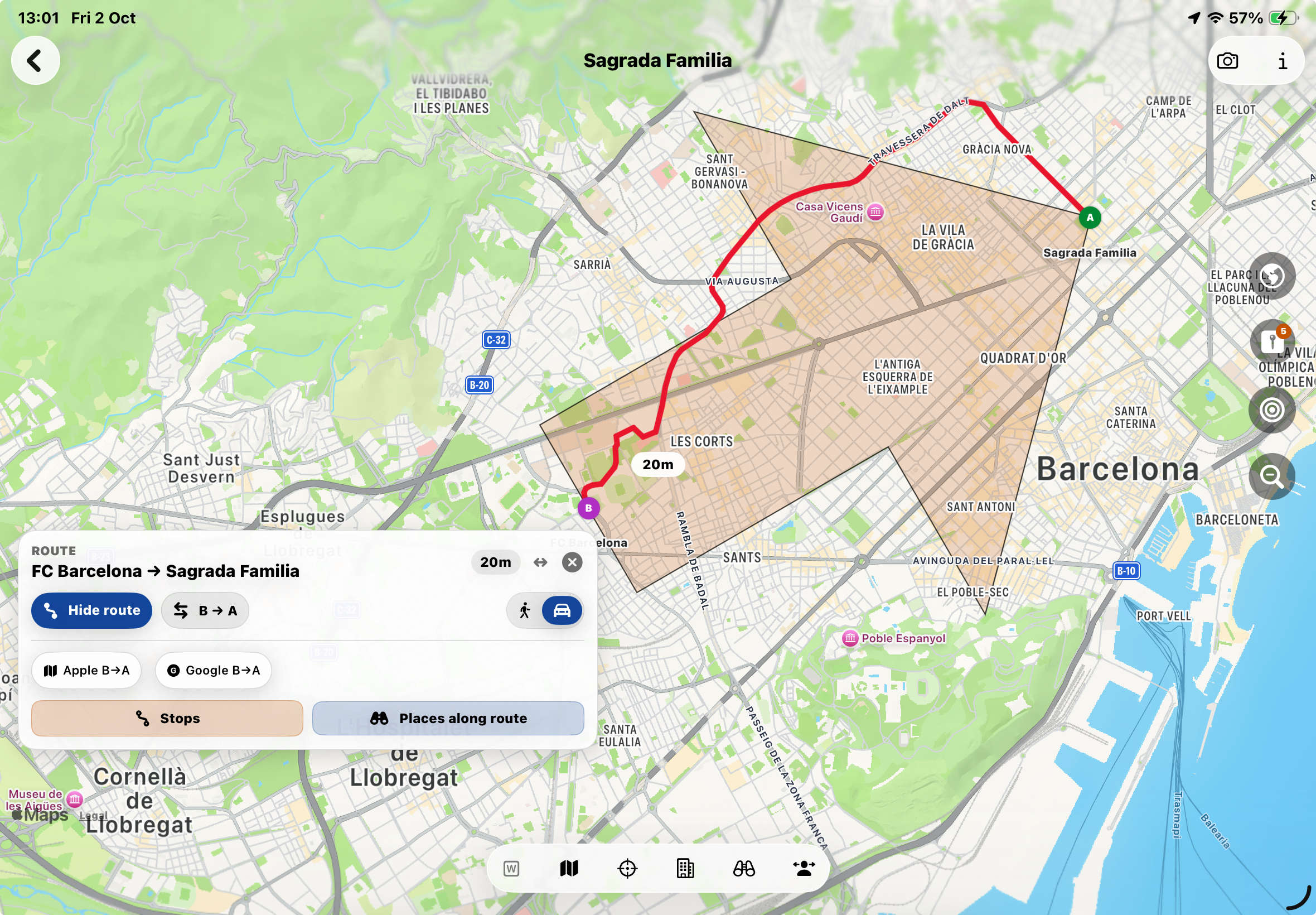
- Check which point is the start and which is the destination. Use Reverse when you want the opposite direction.
- Choose driving or walking in the route controls and wait for the calculation to finish.
- Review the route, distance and estimated time.
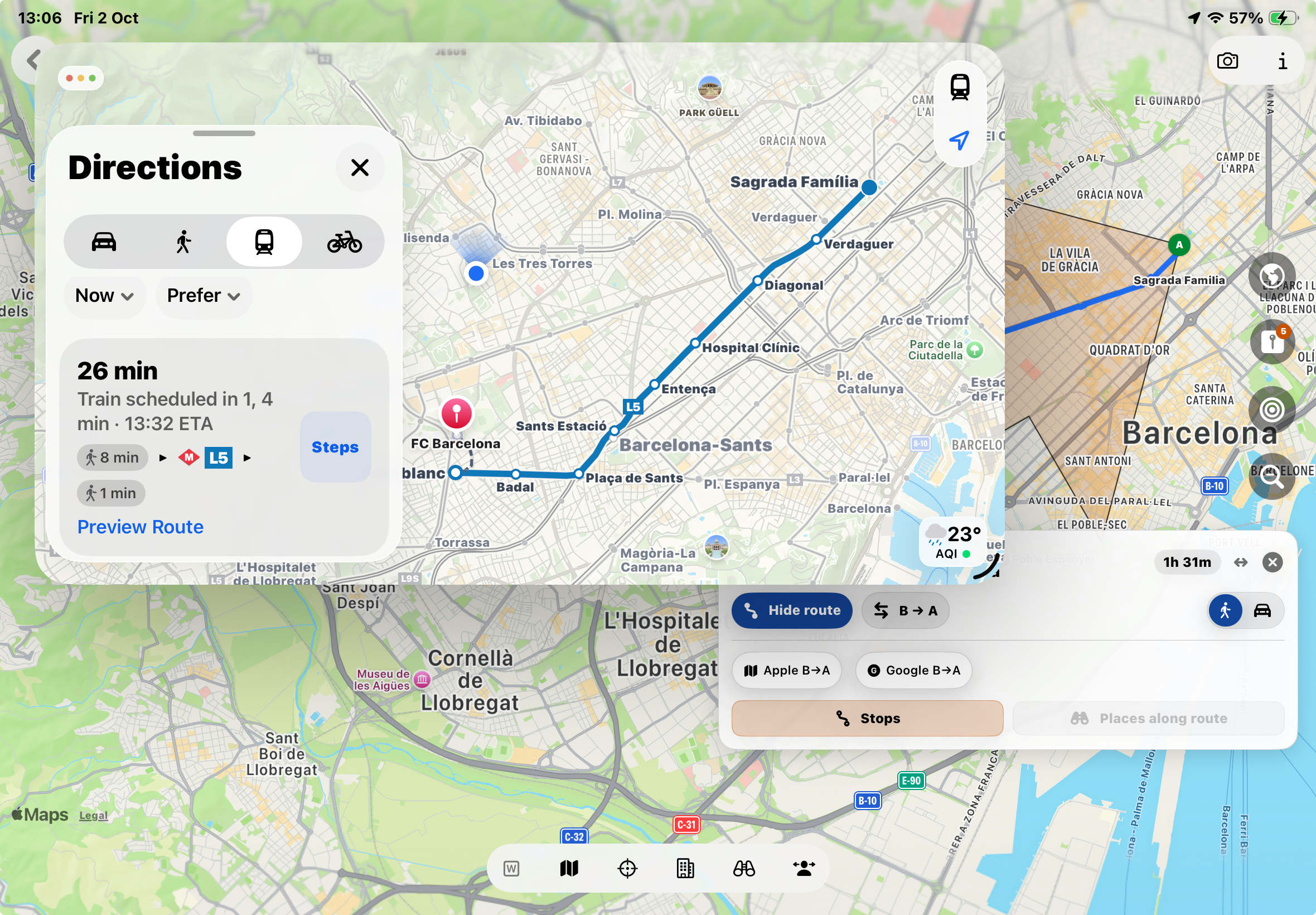
- Open Apple Maps or Google Maps to continue with directions, and check the endpoints and travel mode there too.
08 / LLOCS
Build a route through selected places
Create an itinerary interactively from records already in your LLOCS database.
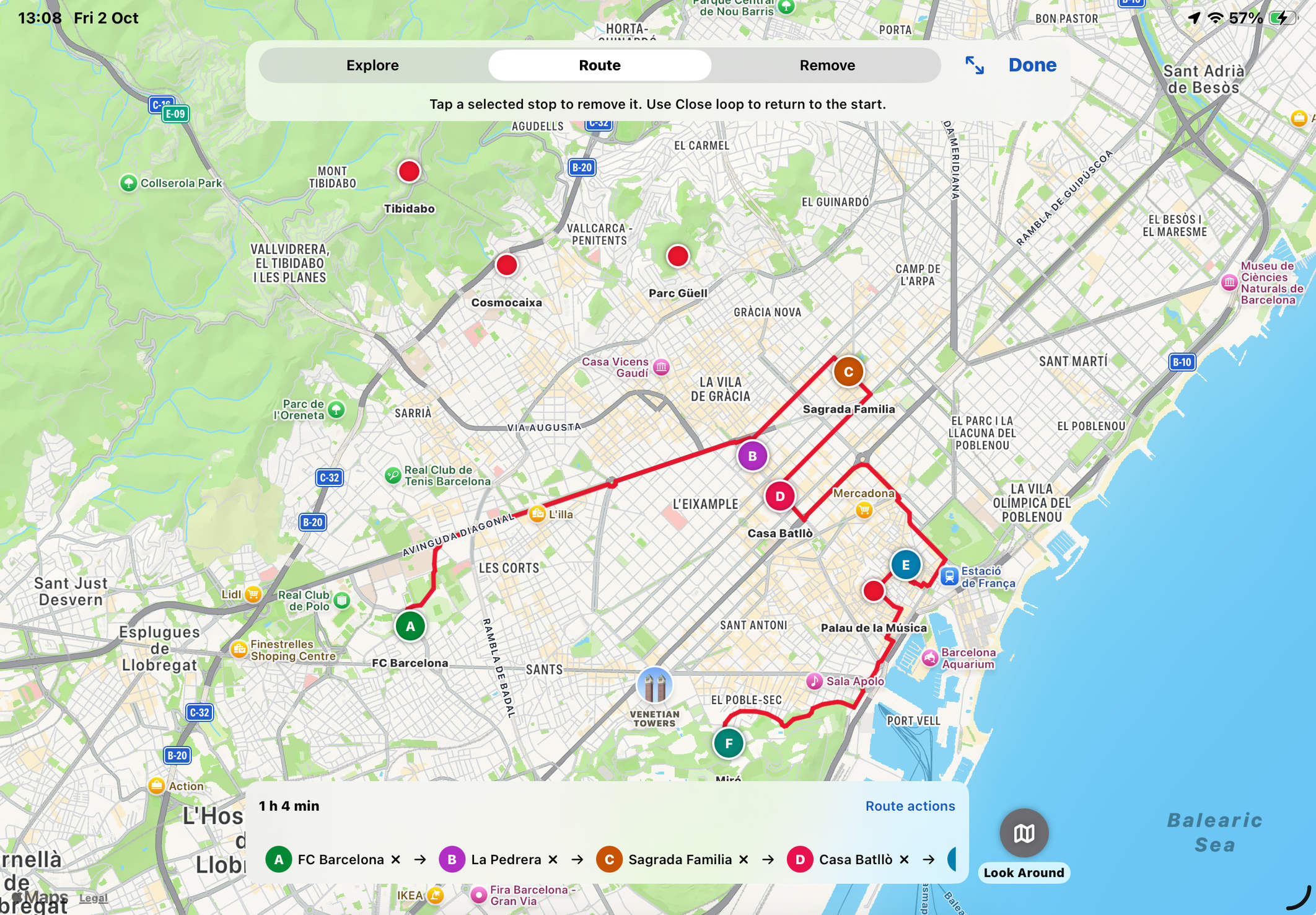
- In a folder’s places list, enable selection and choose the records you want to include. Tap the map button to show them together.
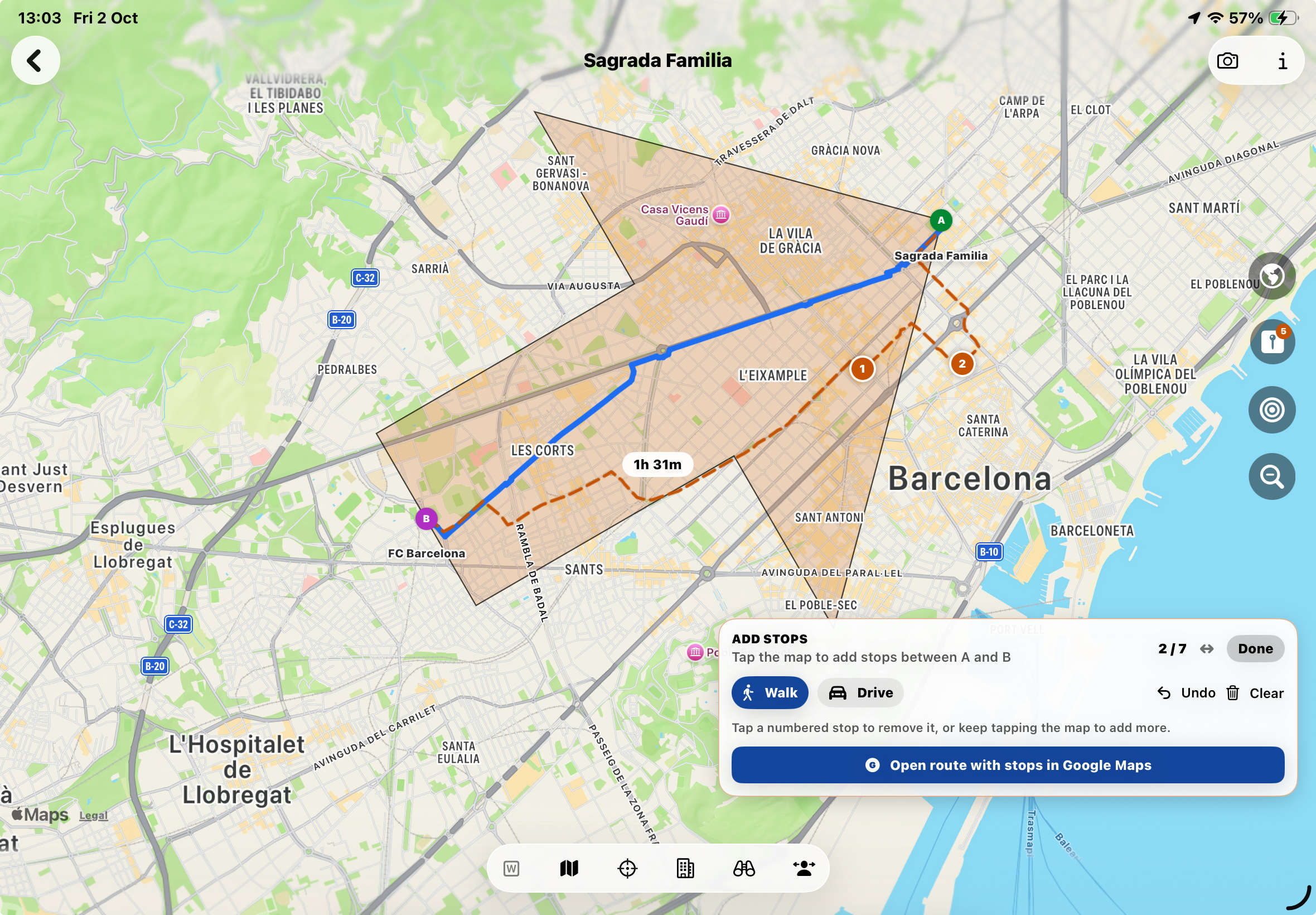
- Choose Route mode, then tap the markers in the order you want to visit them. Review the sequence of stops as you build it.
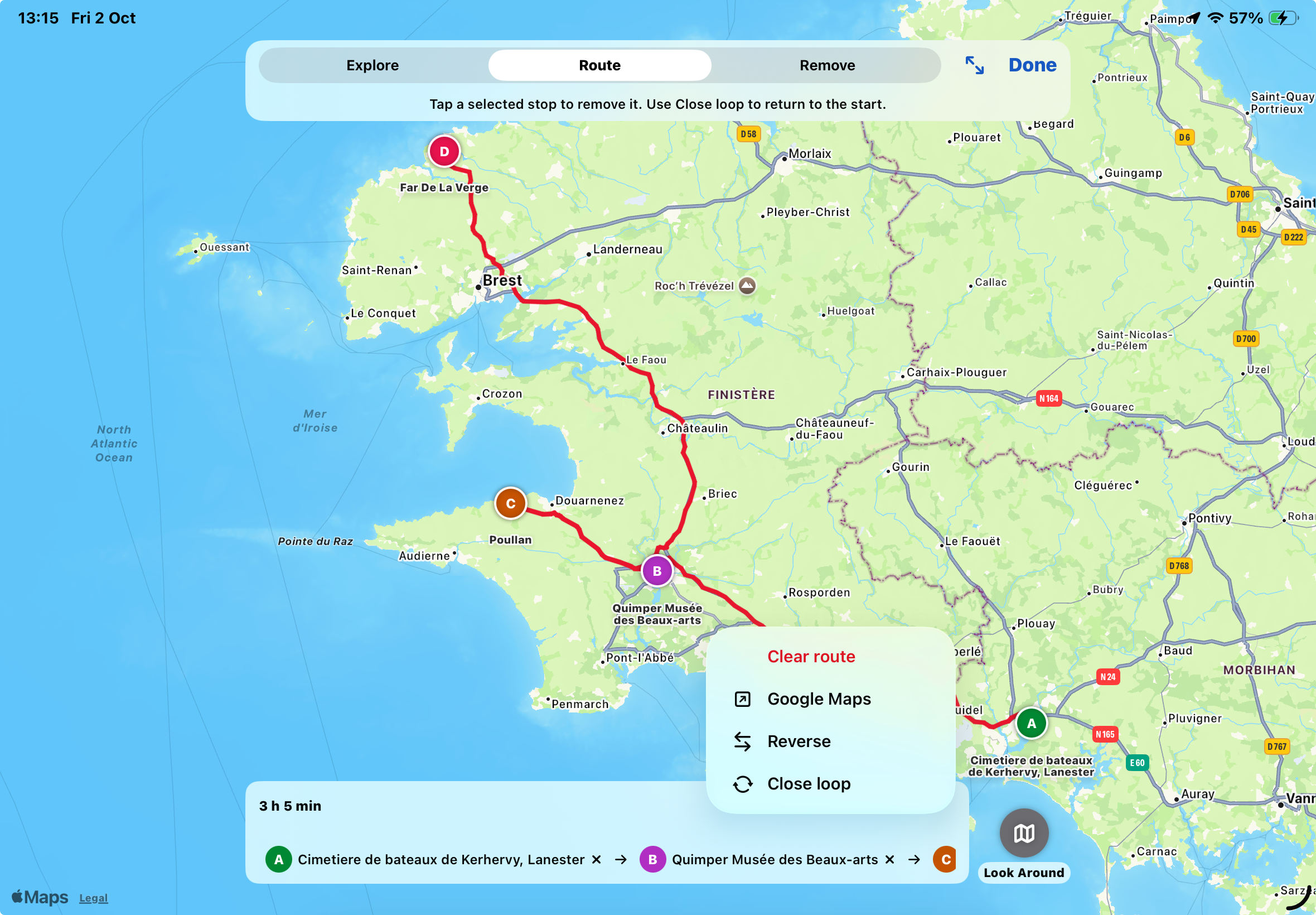
- Use the route controls to remove stops, reverse the sequence or close the loop by returning to the start.
- Choose Explore to inspect places instead. The lower control switches between Look Around and Map Card. Map Card opens the Google Maps card.
- Choose Remove to take a place off this temporary map. This does not delete the saved record from LLOCS.
09 / LLOCS
Find places nearby or along a route
Discover services and points of interest to add to your journey.
LLOCS offers several ways to help you plan a trip or route, or make decisions as you go when you reach your destination:
- Open Places Nearby from the main menu
- Places near your current position
- Places near a saved LLOCS place
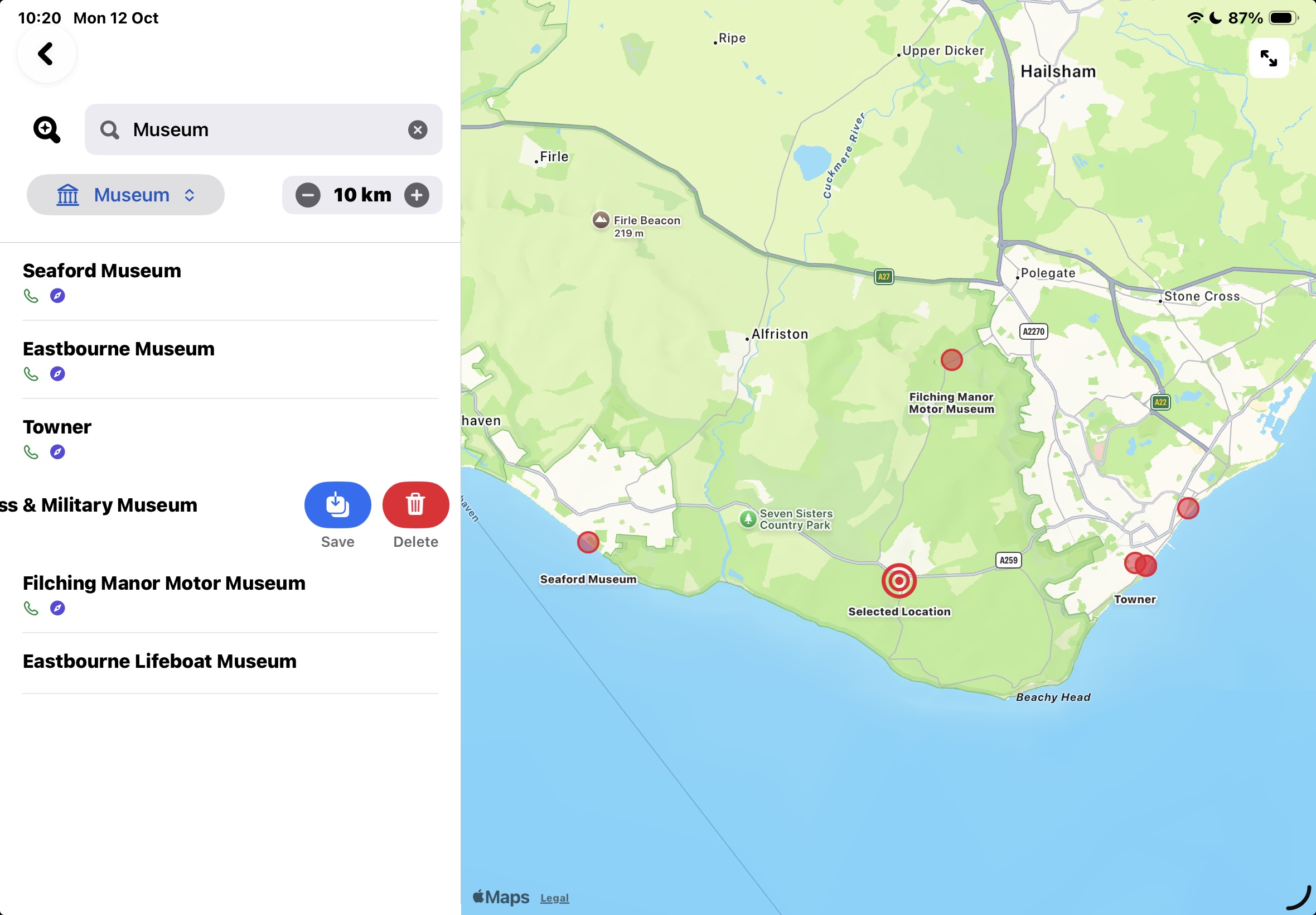
This option searches for points of interest—museums, restaurants, hotels and more—within a chosen distance, from 500 m to 10 km.
For the second option, choose the search centre by first selecting a folder and then a place in that folder. Next, choose a point-of-interest category from the menu in the top toolbar, or search by text. Tapping a result on the map selects its corresponding row in the results list, and vice versa.
In the results list, swipe a row to the right to reveal three buttons: Place Card, Call and Website. Their availability depends on whether Apple’s database contains the relevant card, phone number or website. Call starts a phone call—for example, to book a restaurant—and Website opens the restaurant’s, museum’s or other place’s site. Swipe the row to the left to reveal two buttons: Save to LLOCS and Remove. Remove takes the place out of both the list and the map, which automatically adjusts to include all remaining places. The other button, Save to LLOCS adds the result to the LLOCS database, including its address, phone number and website when available. The record is saved in a special folder named TEMP_NEARBY. You can then move it to any other folder you prefer.
- From a folder
- Show selected places on the map
- Tap the selection button in the top toolbar of the places list to select several places in the folder. Tap Show places on map to display them as red circles on the map. At the top, a menu offers three modes: Explore – Route – Remove. Choose Route to build an itinerary through the selected places interactively. You can even close the loop for a circular route using the actions menu shown in the image. You can also add stops by tapping anywhere on the map. If you choose Explore the button at the bottom right switches between two options: Look Around or Map Card. Look Around shows Apple’s street-level scene when coverage is available. Map Card shows the place’s card if one exists in Google’s database.
- When exactly one place is selected, a “Near [place]” menu appears in the toolbar, with distances from 1 km to 50 km. It shows the places in that folder within the chosen distance, measured in a straight line rather than along a calculated route. This is useful for displaying a nearby subset of places from a folder whose records are spread over a large area, as often happens when planning a trip.
- Places along a route
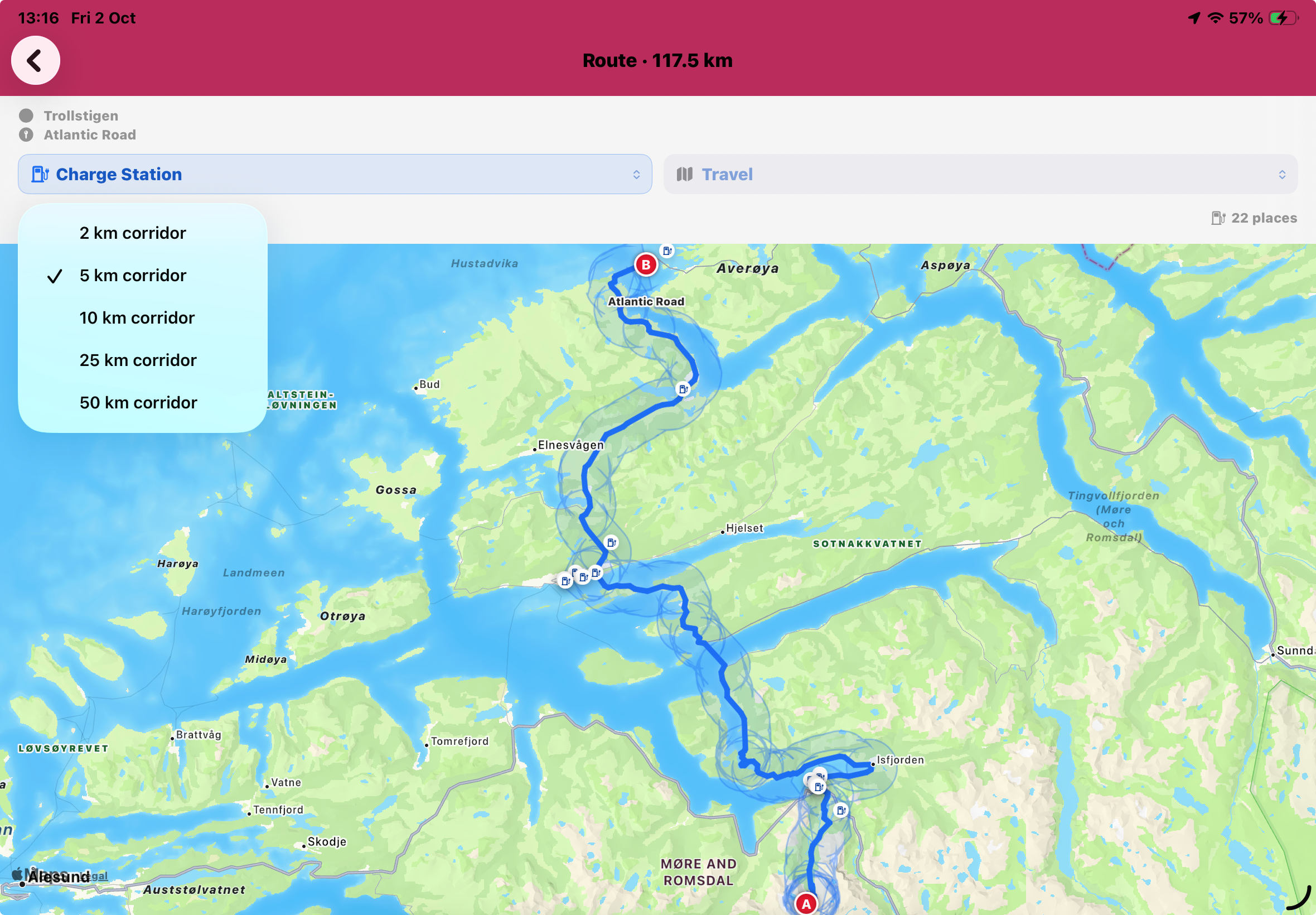
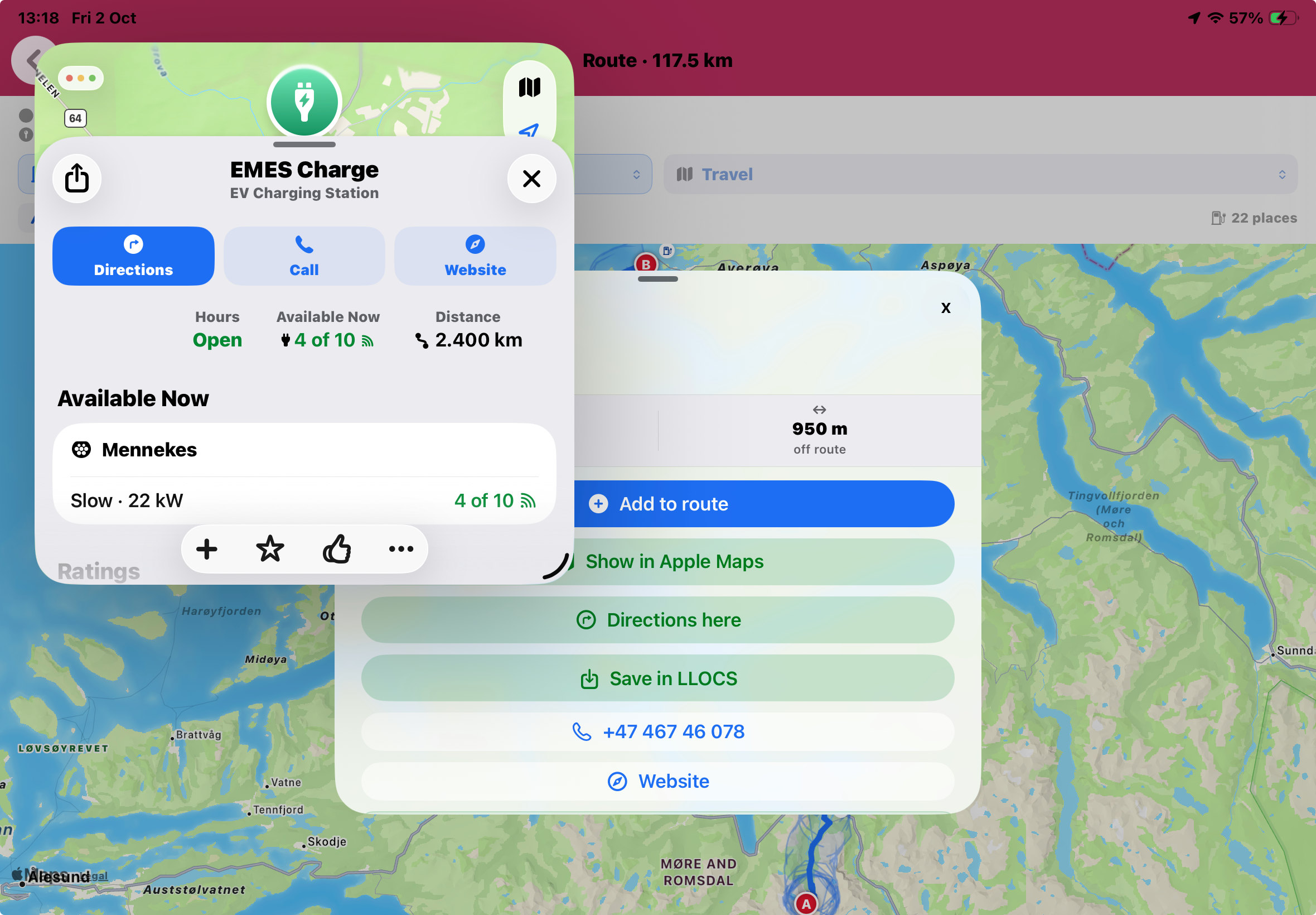
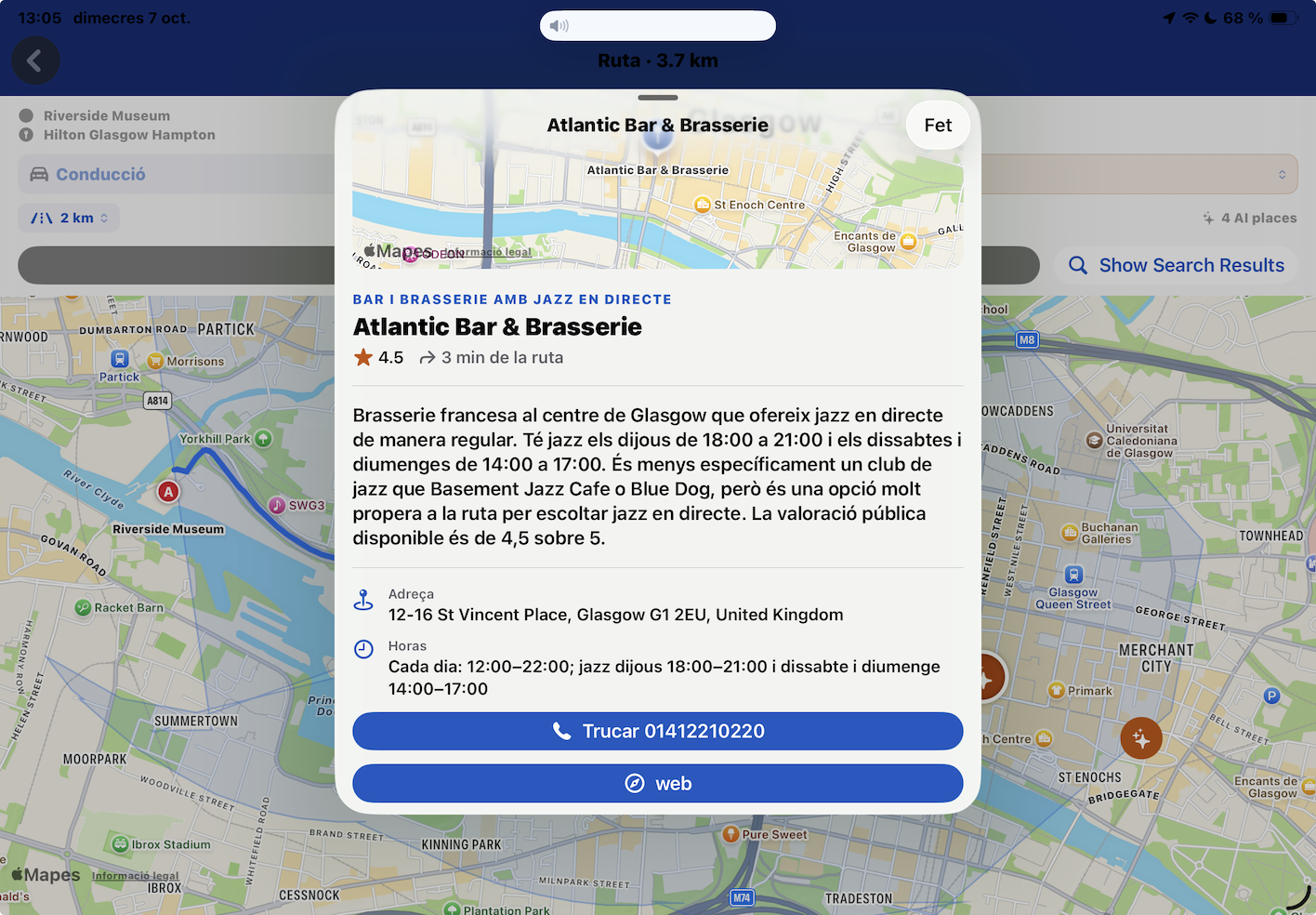
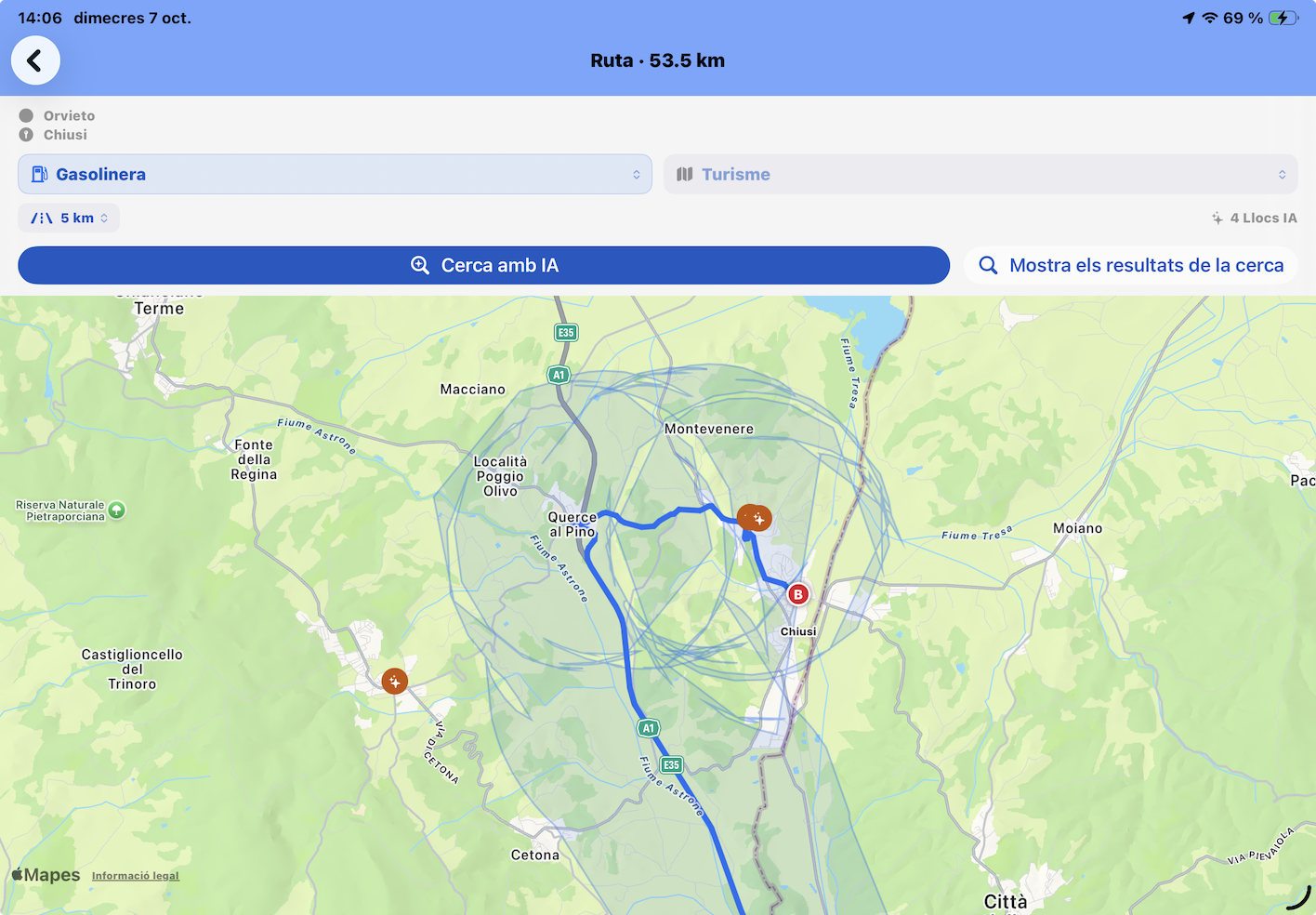
- Access this option from the main map of a place. Once you have established a route between two points, a button appears: Places along the route. If the route distance is below the preset limit, a map shows the route between the two points with three menus. The top menus separate driving-related points of interest—petrol stations, charging stations and parking—from general travel interests such as restaurants and museums. The third menu sets how far from the route to search. Once point-of-interest icons appear, tap one to open the options shown in the image.
10 / LLOCS
Use AI and ChatGPT for complex searches
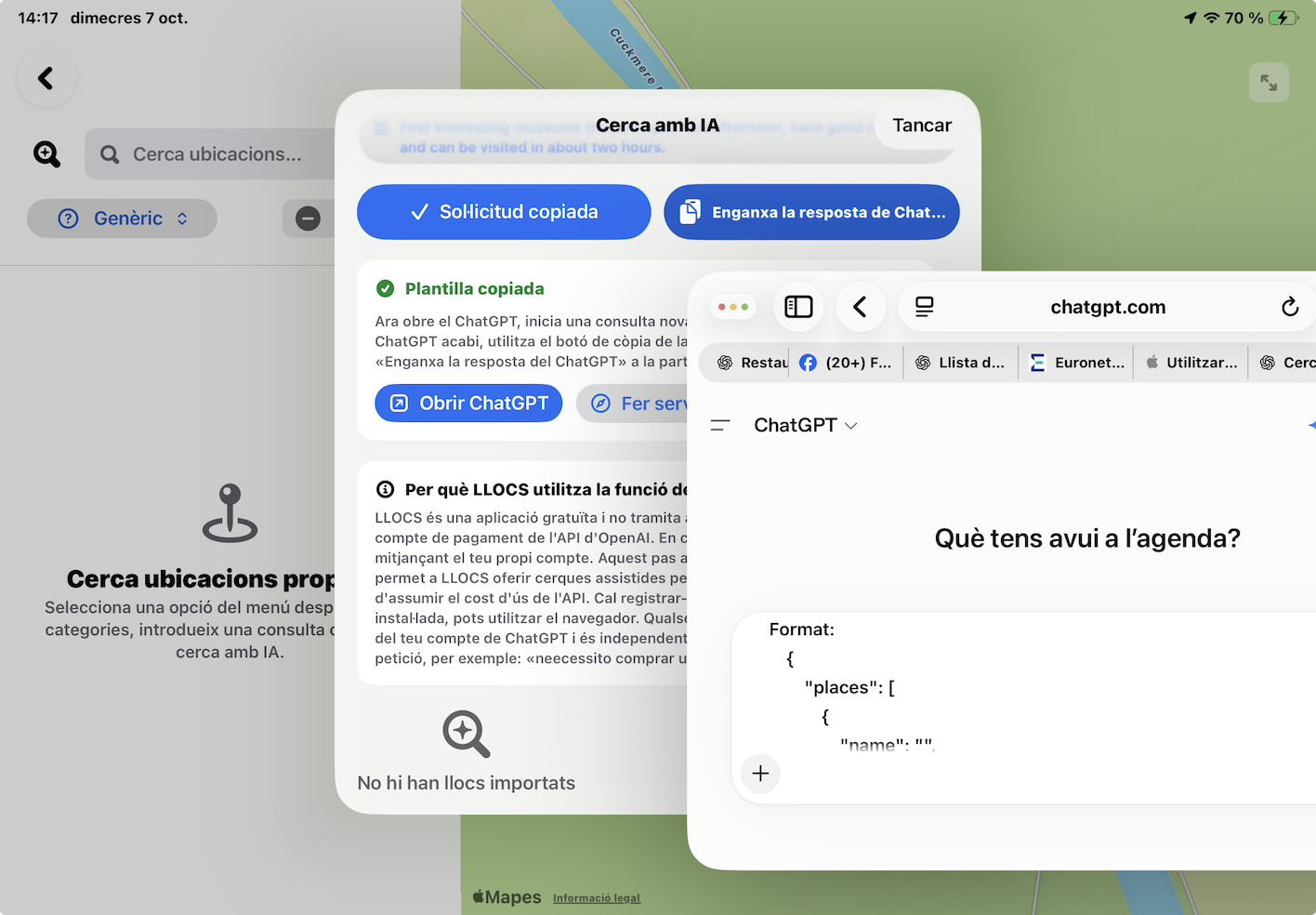
LLOCS prepares a structured request, ChatGPT performs the search, and LLOCS puts the results back on the map.
This feature complements LLOCS’s regular searches when you want to combine conditions that are awkward to express with a single filter: for example, Italian restaurants with lunch menus under €20 that are open now, or interesting museums along a route that are open this afternoon and have good ratings.
The complete flow
What does LLOCS send to ChatGPT?
LLOCS builds a template containing your request, the coordinates needed to locate the search, and instructions telling ChatGPT how to return structured data. A nearby search includes the selected radius. A route search includes the origin and destination and asks for places within a reasonable detour from the route.
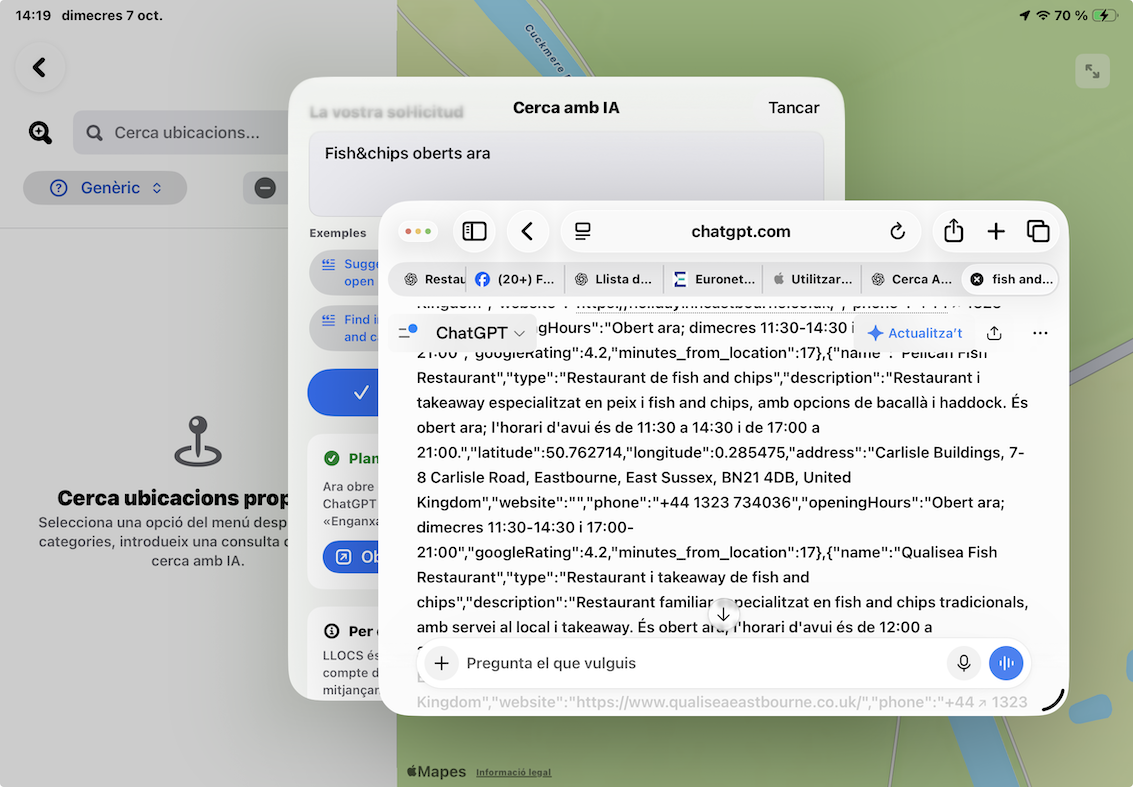
ChatGPT can consult current information when the request depends on opening hours, prices, menus, ratings, exhibitions, or other details that may change. The answer may look like computer code because it is JSON: ignore its technical appearance and copy the complete answer.
Two ways to use it
| Where | What you ask for | What happens after pasting |
|---|---|---|
| Nearby Places | A complex search around a location and within the selected radius. | LLOCS shows the results as a list synchronised with map annotations. |
| Along a route | A complex search for stops or services within a reasonable detour from the journey. | LLOCS shows the results directly as annotations on the route map. |
11 / LLOCS
Draw on and share the map
Add your own directions or combine the map with a street-level view.
- Open a place’s map and choose the area and zoom level you want to show.
- Tap the camera button in the top toolbar to open the view with the Map / Drawing.
- Switch to Drawing. Use the tools and colours to mark a route, entrance or meeting point over the map.
- Review the resulting sketch and use Share to send it to someone else.
Add a Look Around snapshot to a PDF
In Look Around, use its camera button to capture the street-level scene. Close Look Around, open the top camera button’s Map / Drawing workspace, then choose Share Coordinates & Map. The PDF can include both the map or sketch and the captured street scene, so the recipient can see the location and what to look for on arrival.
Share a place as data
An image or PDF is useful for explaining a location. To send the place as a record that another LLOCS user can import, return to the places list, leave selection mode and swipe the row to the right. Open Share and choose the option to export to another LLOCS in its own format.
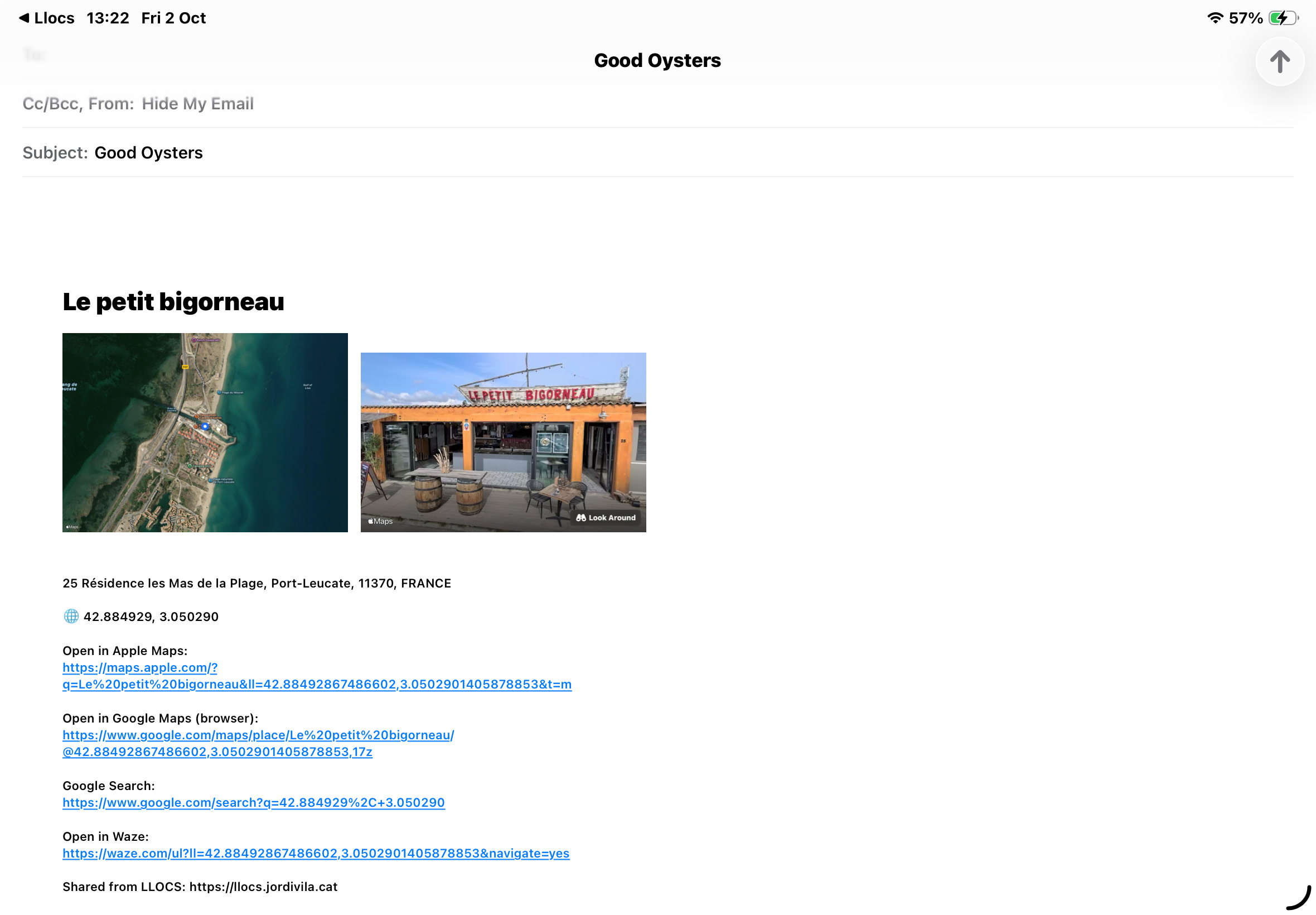
See Transfer places from one copy of LLOCS to another.
↑ Back to top12 / LLOCS
Save your position and return home
Different shortcuts for everyday navigation.
Where I am and Where I was
Open Where I am and wait for the device to locate you. Tap the button to save your position. You can retrieve it later with Where I was. Positions saved from Where I am can also be found in the TEMP.
Take me home
Open a place’s information screen and mark it as Home in the coordinates section. In Settings, choose your preferred app for navigating home. From the home screen, tap Take me home.
Direction through the camera
If you use the camera direction view, check the accuracy warnings. An unreliable heading may put the destination outside the camera view or in the wrong direction. Move away from sources of interference and check the heading in Apple Maps too before relying on the arrow.
↑ Back to top13 / LLOCS
Protect and transfer your data
Use a complete backup to restore the database, or a LLOCS place package to share individual records.
Complete backup: keep the exact ZIP filename
- In Settings, make a local backup if you want a recovery point on the current device.
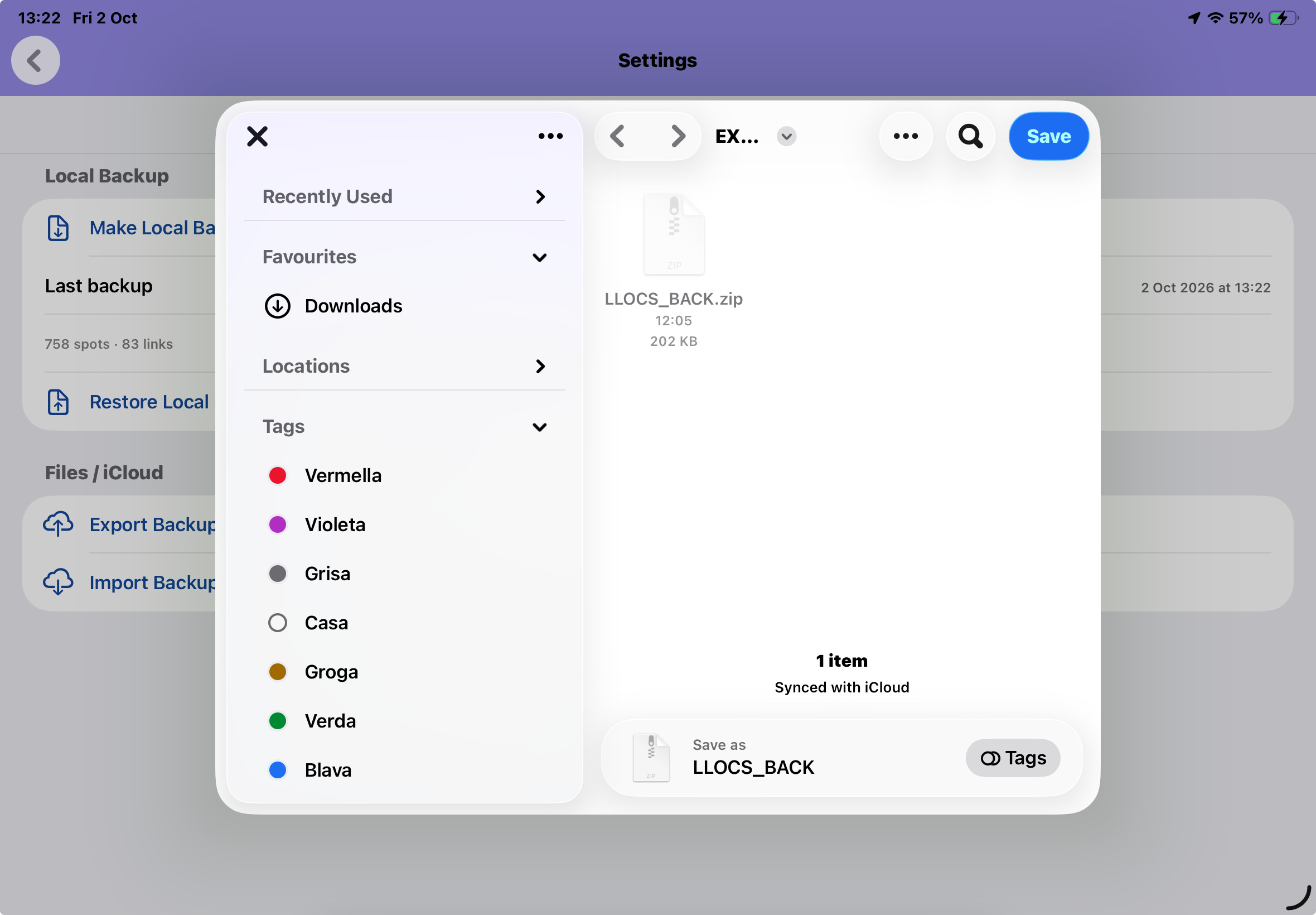
- To transfer a complete backup, choose Export Backup and save LLOCS_BACK.zip to Files or iCloud Drive.
- On the destination device, choose Import Backup and select the ZIP with that exact name.
- Wait for completion. Check the folders, places, links and photos before relying on the restored copy.
Transfer places from one copy of LLOCS to another
You can send one place or a package of records to another LLOCS user. The export produces a ZIP named LLOCS_<LLOC NAME><DATE>.zip, with the place name and export date supplied by the app.
On the sending device
- Open the places list and leave selection mode. Swipe a place row to the right, open Share and choose the option to export to another LLOCS.
- To send several records, select them and use the export option for the selection.
- Send the exported ZIP by message or email, or share it using your preferred method.
On the receiving device
- Save the ZIP received by message or email wherever you prefer, such as a folder in Files or iCloud Drive. Keep it as a ZIP.
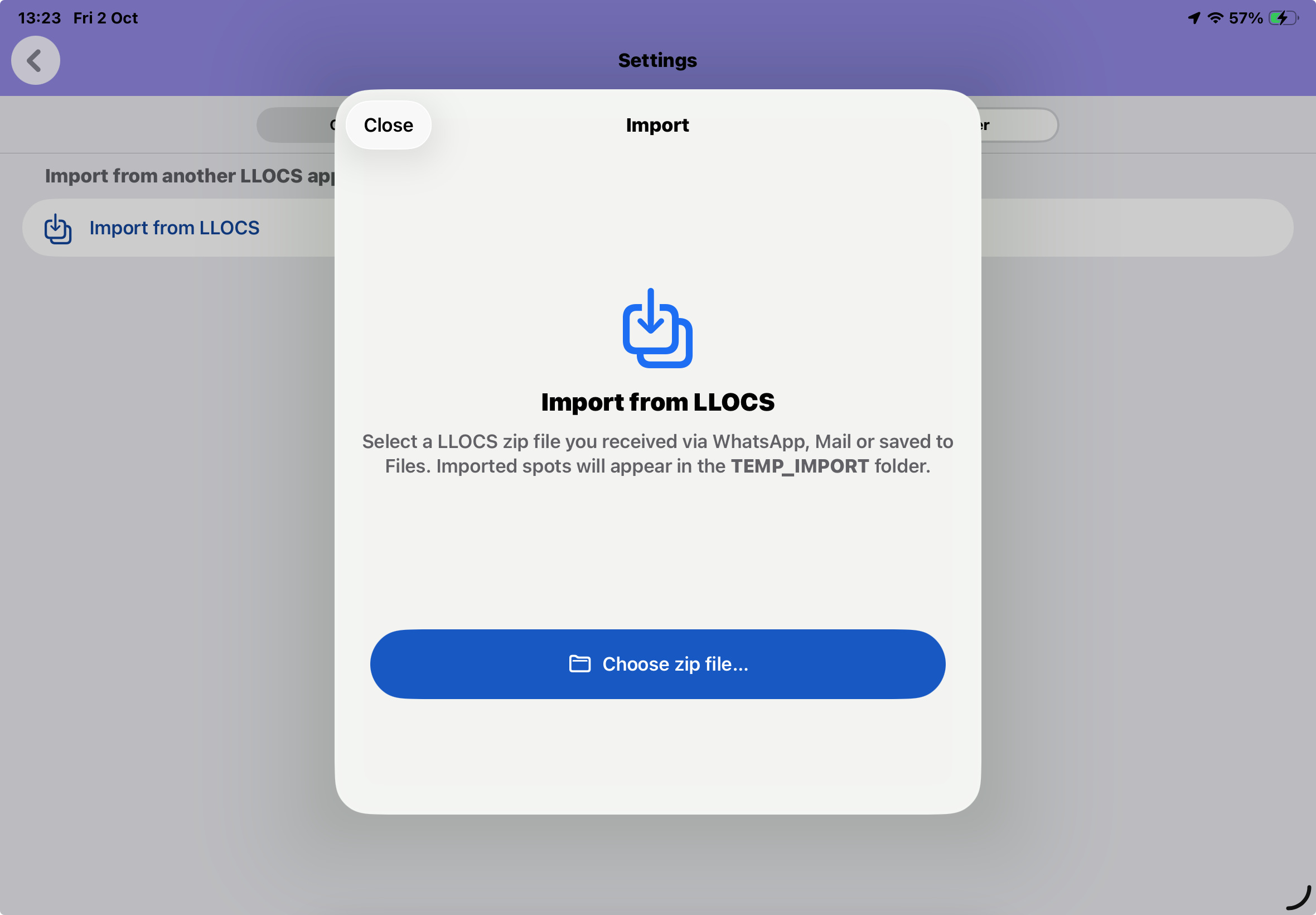
- Open LLOCS and go to Settings → Transfer → Import from LLOCS (Settings → Transfer → Import from LLOCS).
- In the file picker, find and select the ZIP you saved.
- The imported record or records are saved in a special import folder. LLOCS creates this folder automatically if it does not already exist.
The folder name depends on the app language:
- Catalan (CA):
TEMP_IMPORTATS - English (EN):
TEMP_IMPORT - Spanish (ES):
TEMP_IMPORTADOS
Open that folder to review the imported places. You can then move or copy them into your own folders.
Saving a ZIP to iCloud Drive allows you to transfer it; it does not automatically synchronise the live databases of two devices.
↑ Back to top14 / LLOCS
Use iPad in multiple windows
The layout follows the space available.
In a wide window, folders and their places can appear side by side. In a narrow window, tap a folder to open its list and use Back to return to the folders.
On the home screen, the title and subtitle appear above the buttons when space is limited. Scroll vertically if the content does not fit in the available height.
Some screenshots in this draft may show an earlier arrangement of controls. Use the action’s name as your reference.
↑ Back to top15 / LLOCS
When something does not work
Quick checks before trying the action again.
- The list has no places
- Check the selected folder and clear any active text or type filters.
- The route is not calculated
- Check the connection, endpoints and travel mode. Try again after the previous calculation has finished.
- Look Around shows no image
- Street-level coverage may be unavailable at that point. Continue with the map or try a nearby location.
- The location or compass is unreliable
- Check LLOCS location permissions in device settings and wait for a more accurate reading. Results also depend on the device’s sensors.
- Links are missing after import
- Check that the ZIP is a recent backup made on the device that contains the links. Do not confuse a shared package of places with a complete backup.
- Website search does not respond
- Check your connection and the message shown by the app. If you reached the search allowance, wait until it resets.